

Open Wide display view
1
Open Wide display view
On the session host page, click Share in the upper-right corner.In the sharing window, click the session’s Audience page link. On the audience page, select Wide display view.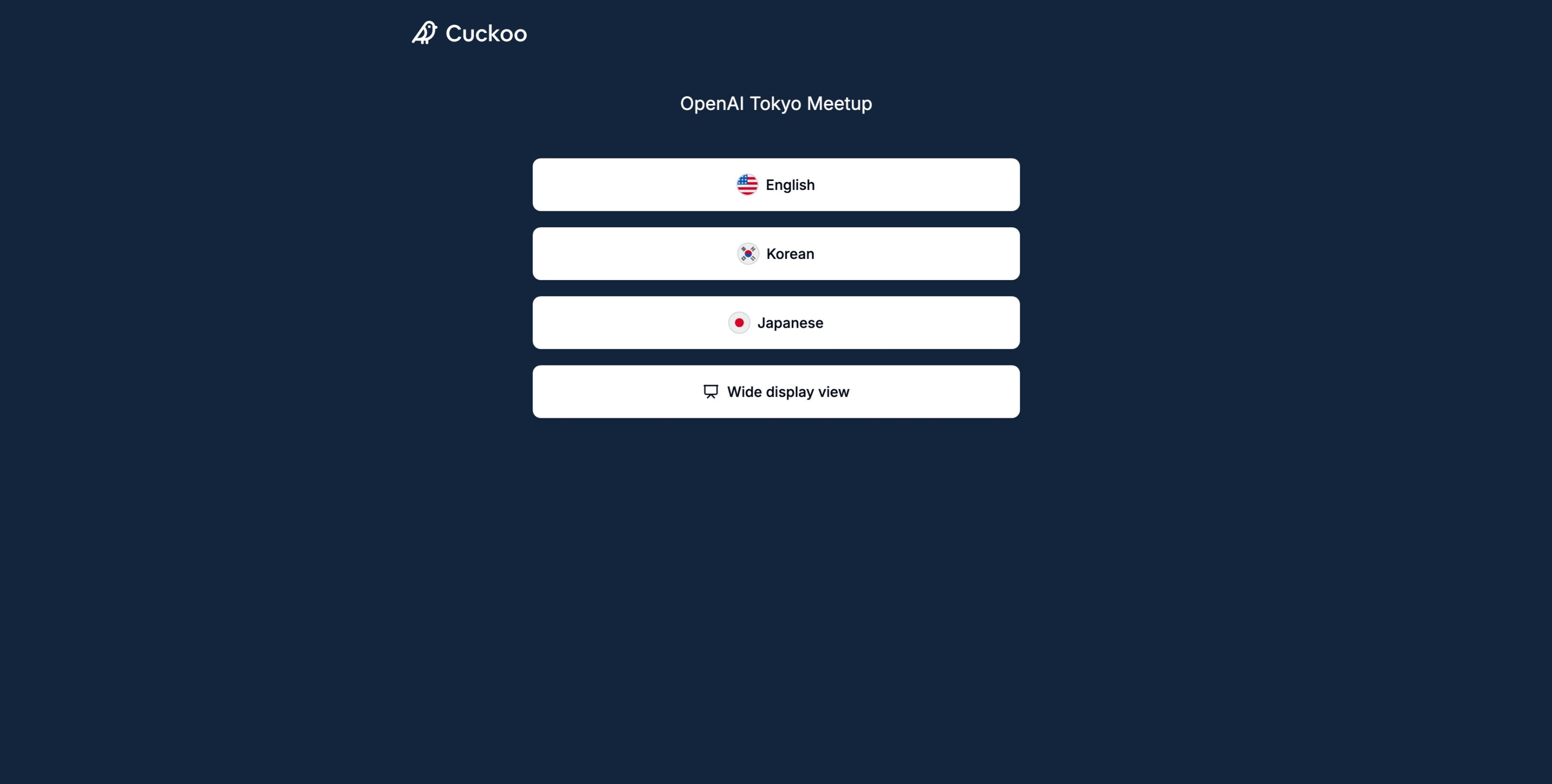
2
Choose the displayed languages
Open the display settings and select the languages you want to show.Use one language when most attendees need the same translation. Show multiple languages when the audience is multilingual and each language will remain readable on the screen.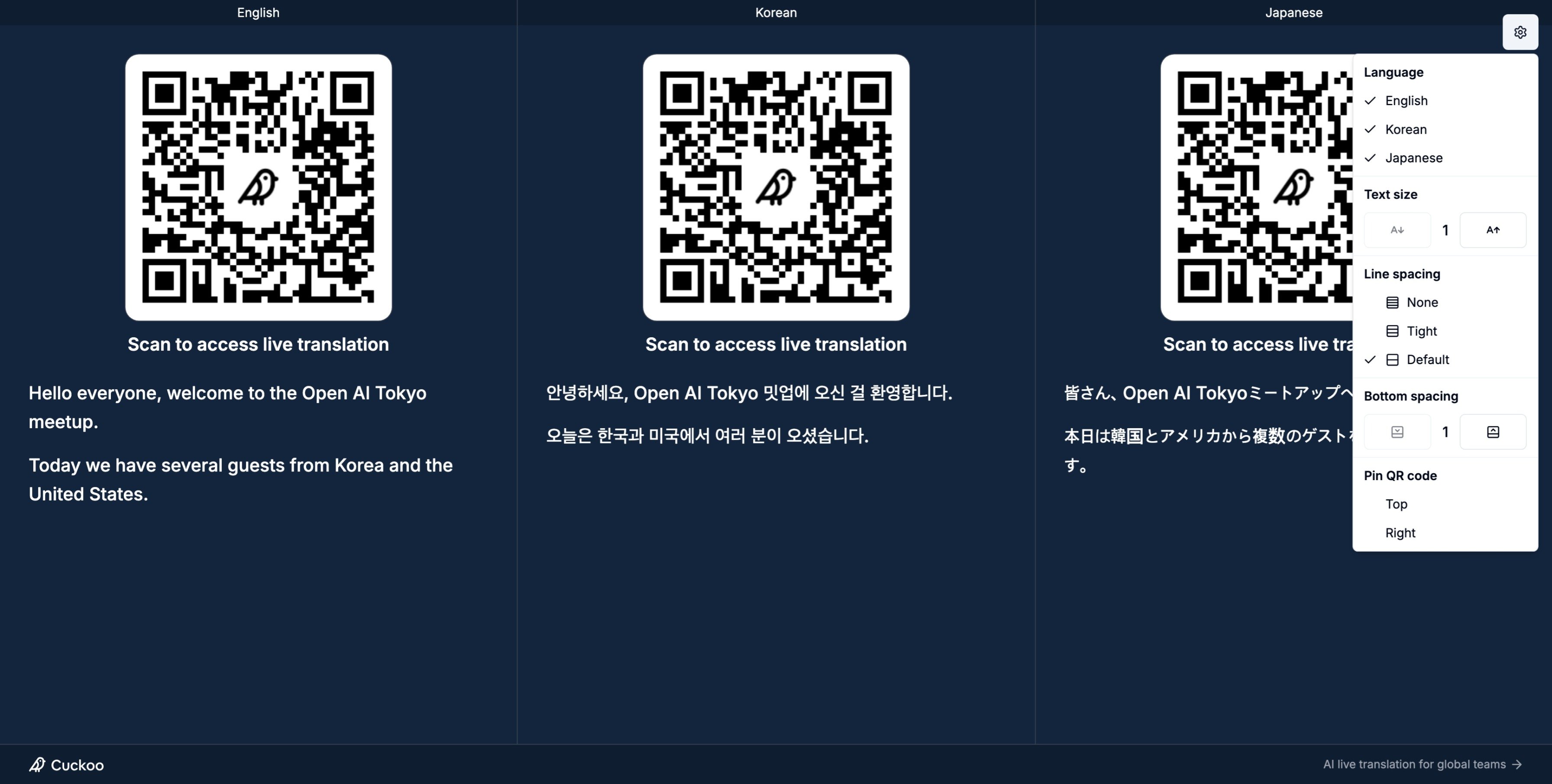
3
Adjust the layout
Configure the display for the venue. Available options include: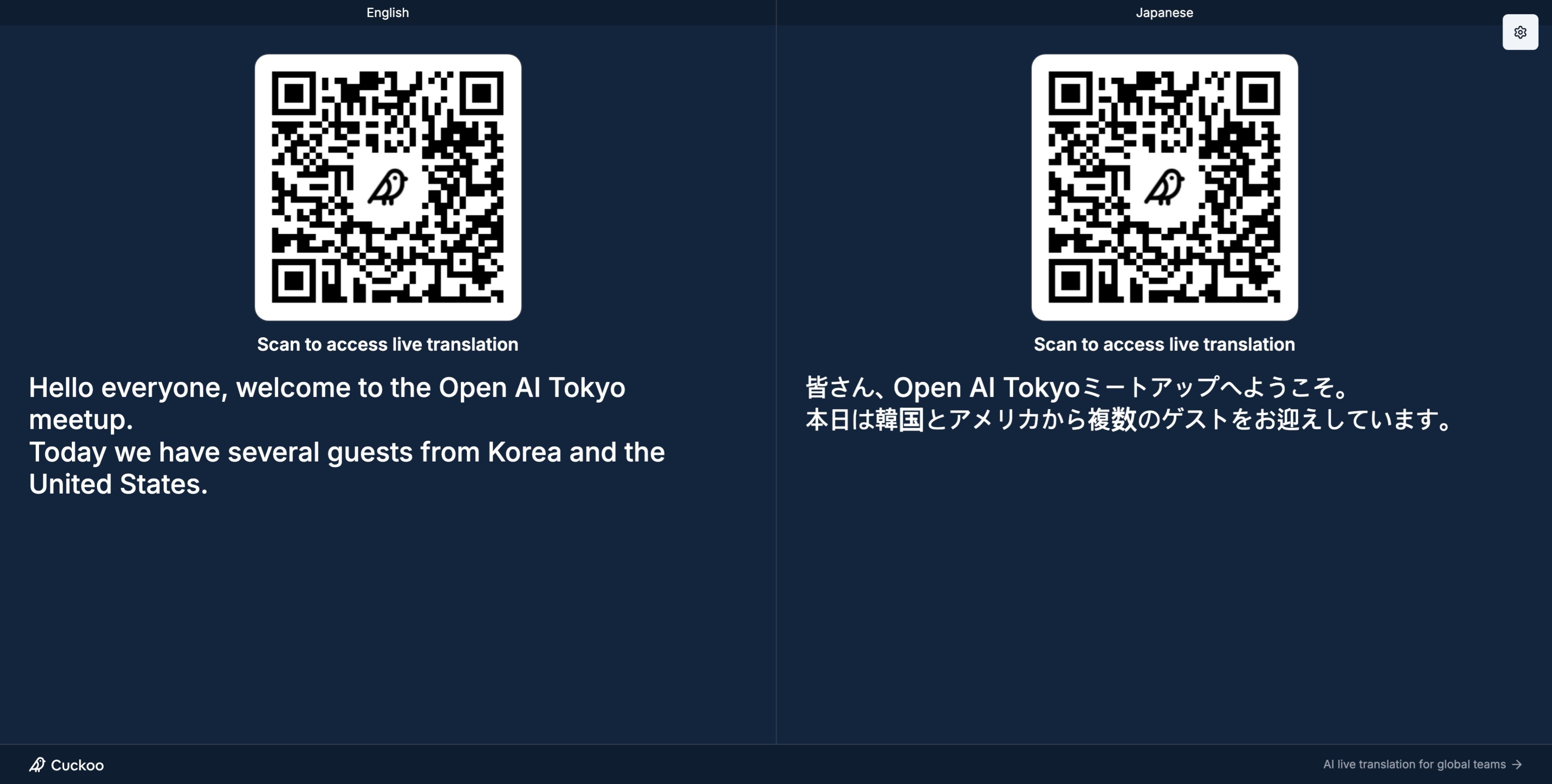
- Text size: Increase or decrease the translation size.
- Line spacing: Adjust the space between translated lines.
- Bottom spacing: Keep text clear of the bottom of the screen.
- QR code position: Place the audience QR code at the top or side of the display.
Show translations on another display
Use a dedicated display
Connect your computer to a projector, TV, or external monitor with an HDMI cable. Use the appropriate adapter if your computer does not have an HDMI port. Move the Wide display view browser window to the connected display, then enter full-screen mode:- Windows: Press
F11. - macOS: Press
Control + Command + F.
More ways to display translations
These options require one laptop to run both the event content and captions throughout the event. It also requires installing and testing the desktop app or Chrome extension in advance.Use translations in OBS
Use OBS when you want to combine translations with slides, video, speaker footage, or other event visuals. Open the session’s Audience page, select Wide display view, and add the page to OBS as a browser source or window capture. Resize or crop the source to the translation region, then position it in your event layout. This option gives the production team the most control over the size and placement of translations. Test the final layout, screen resolution, and text size on the venue display before the event begins.Use desktop app or Chrome extension captions
Use the Cuckoo desktop app or Chrome extension when you want to show a smaller caption or overlay on top of slides, videos, or other content from the same computer. Install the Cuckoo desktop app or Chrome extension before the event.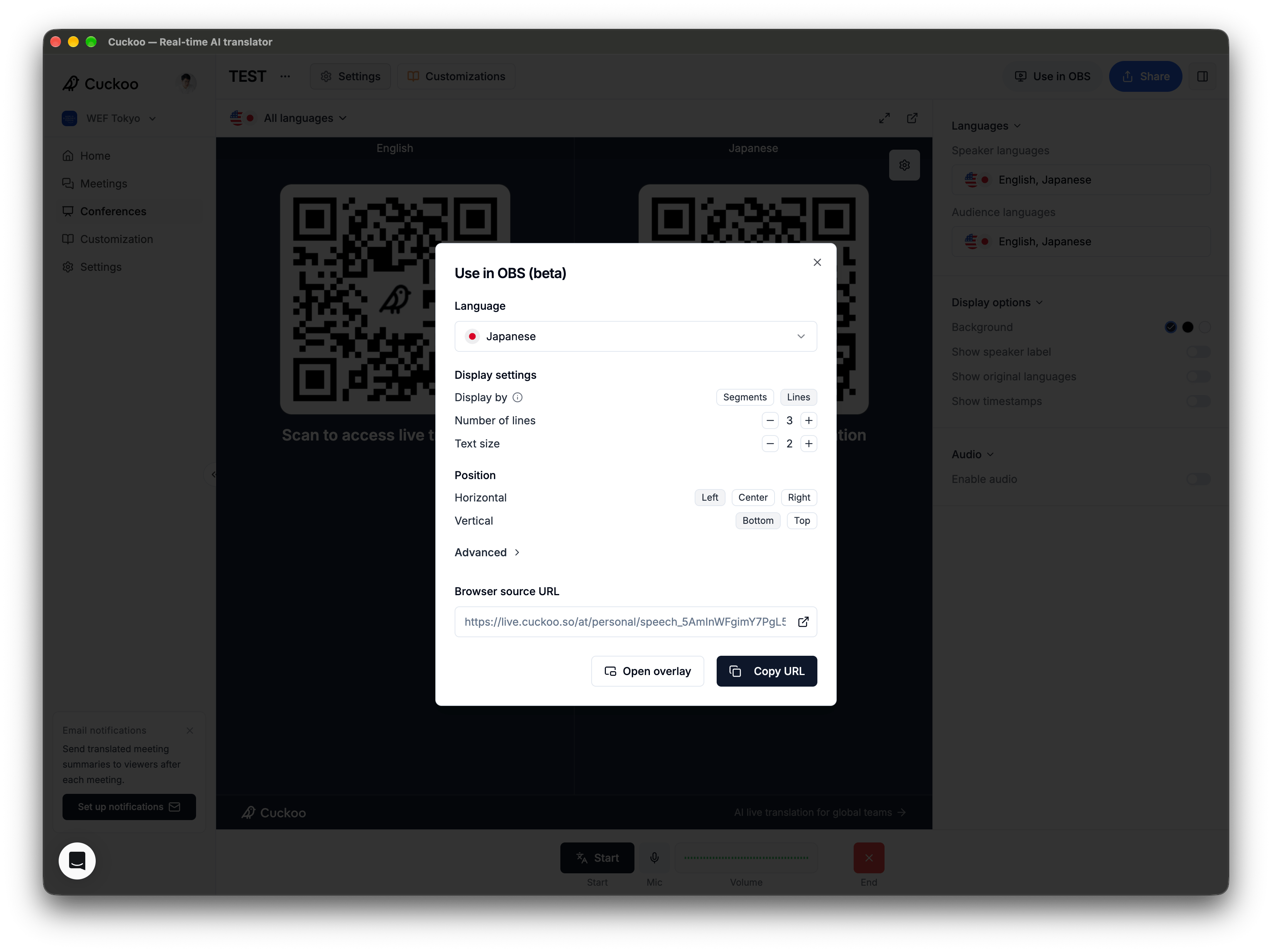
1
Open the overlay settings
On the session host page, click Use in OBS in the upper-right corner.
2
Configure the captions
Under Language, select Japanese. Under Display settings, select Lines, set Number of lines to 3, and set Text size to 2.
3
Activate the overlay
Click Open overlay. The caption overlay opens above your other windows.