Sign in
To use Cuckoo at an upcoming event, contact our team or schedule a call to enable Cuckoo for Events. After we enable access, sign in and select the correct organization. Cuckoo for Events is not available in personal workspaces.Create a session
1
Create a conference
Open Conferences and click New conference.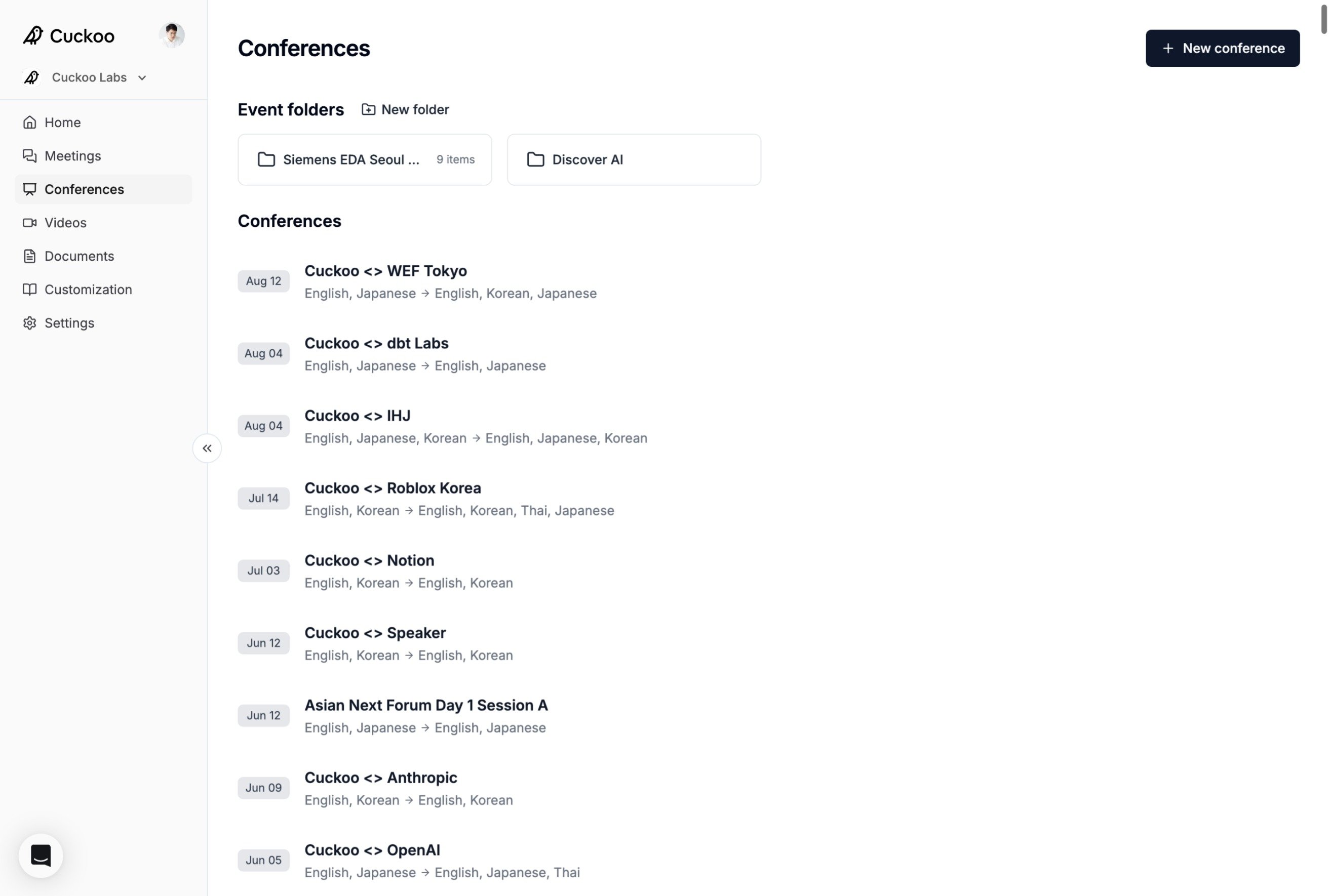
2
Set the title and languages
Complete the conference form.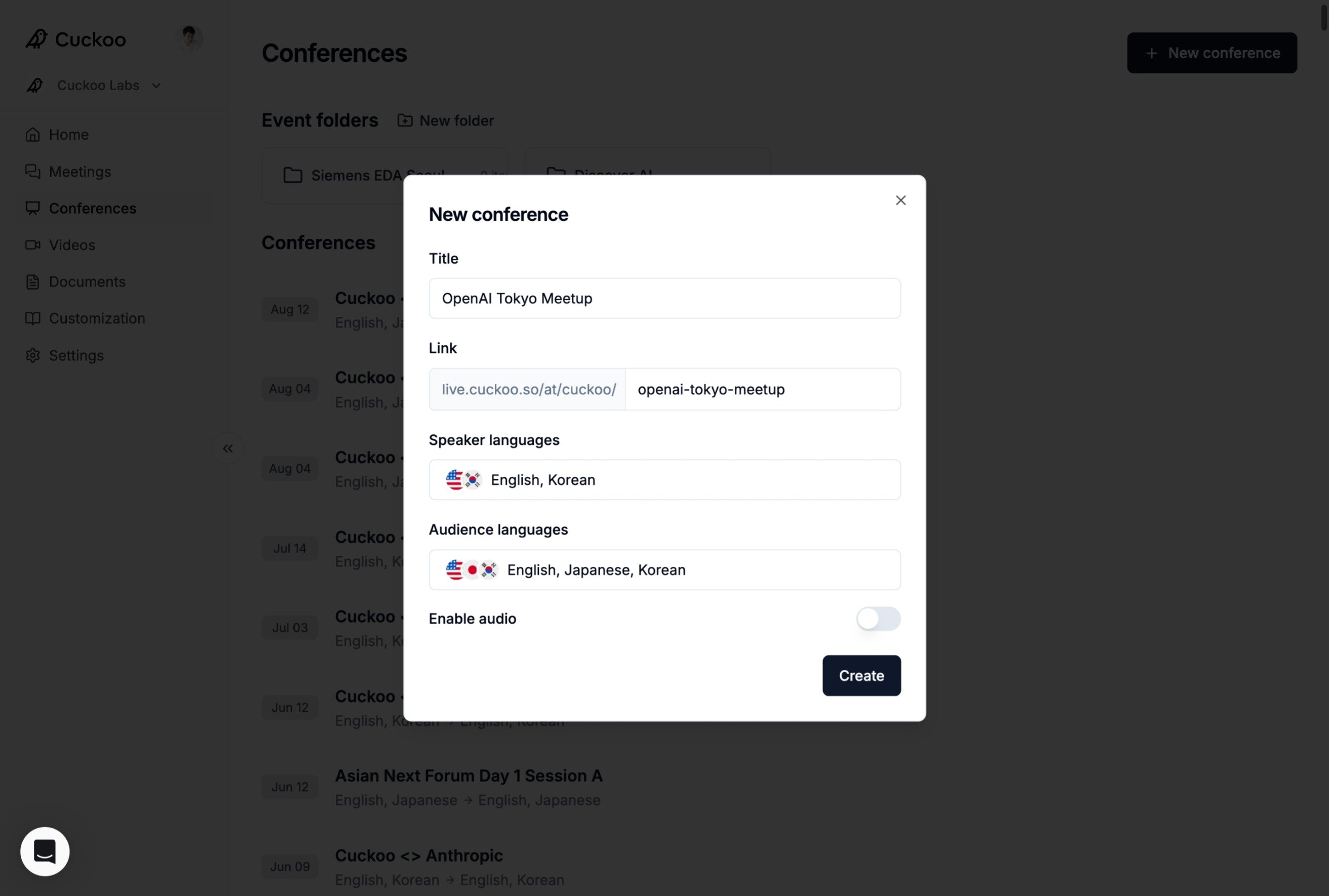
- Title: The conference name shown in Cuckoo and to attendees.
- Link: An automatically generated, editable URL that attendees use to access translations.
- Speaker languages: All languages that speakers will use during the event. Cuckoo detects when the language changes.
- Audience languages: All languages you want Cuckoo to translate into.
- Enable audio: Let attendees listen to spoken translations on their devices with headphones. This feature is currently in beta.
3
Start translation
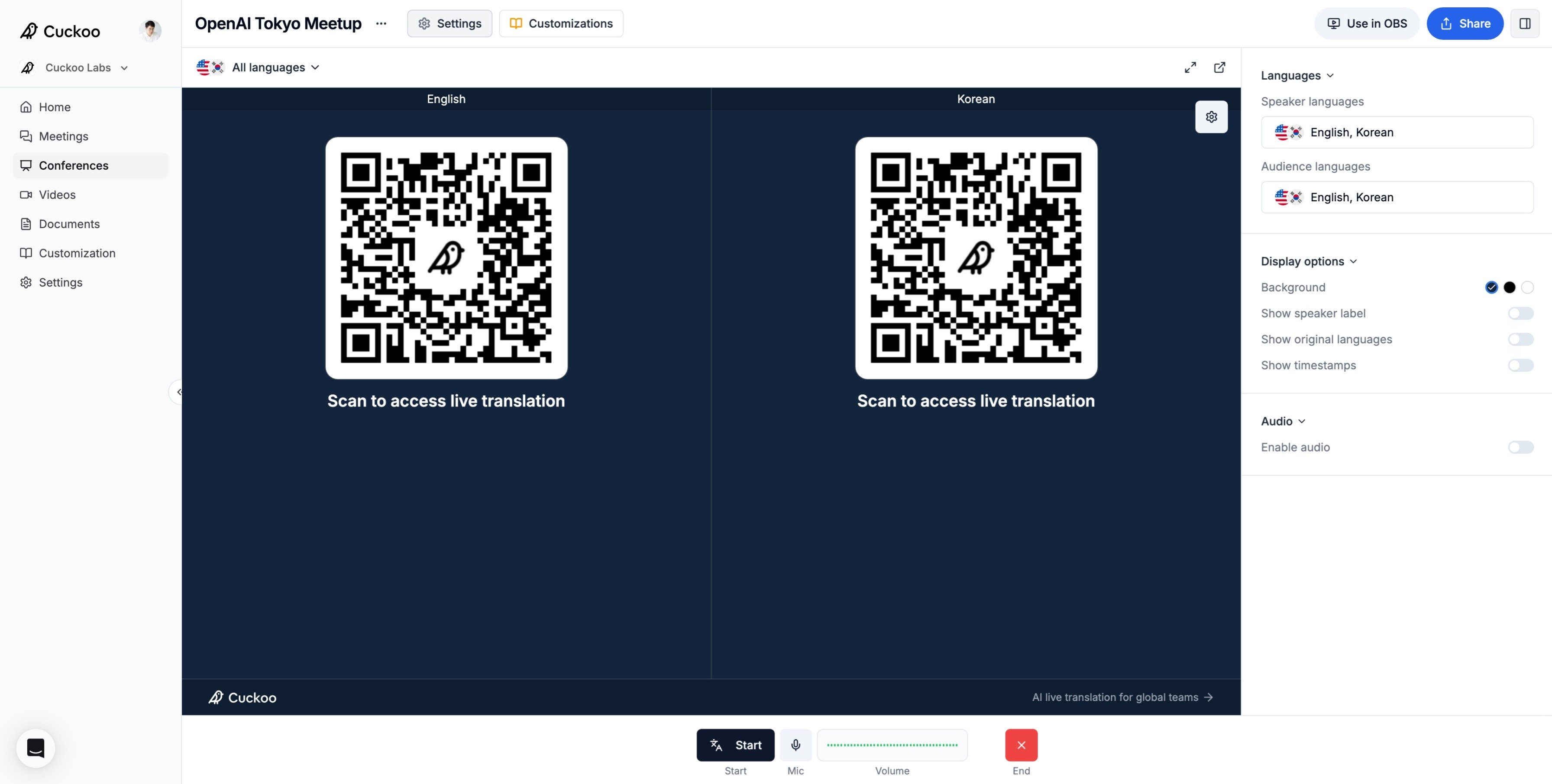
Under Mic, select your microphone input. You can use a USB microphone or an audio interface connected to the venue’s audio system.Check the Volume indicator to confirm that Cuckoo is receiving audio.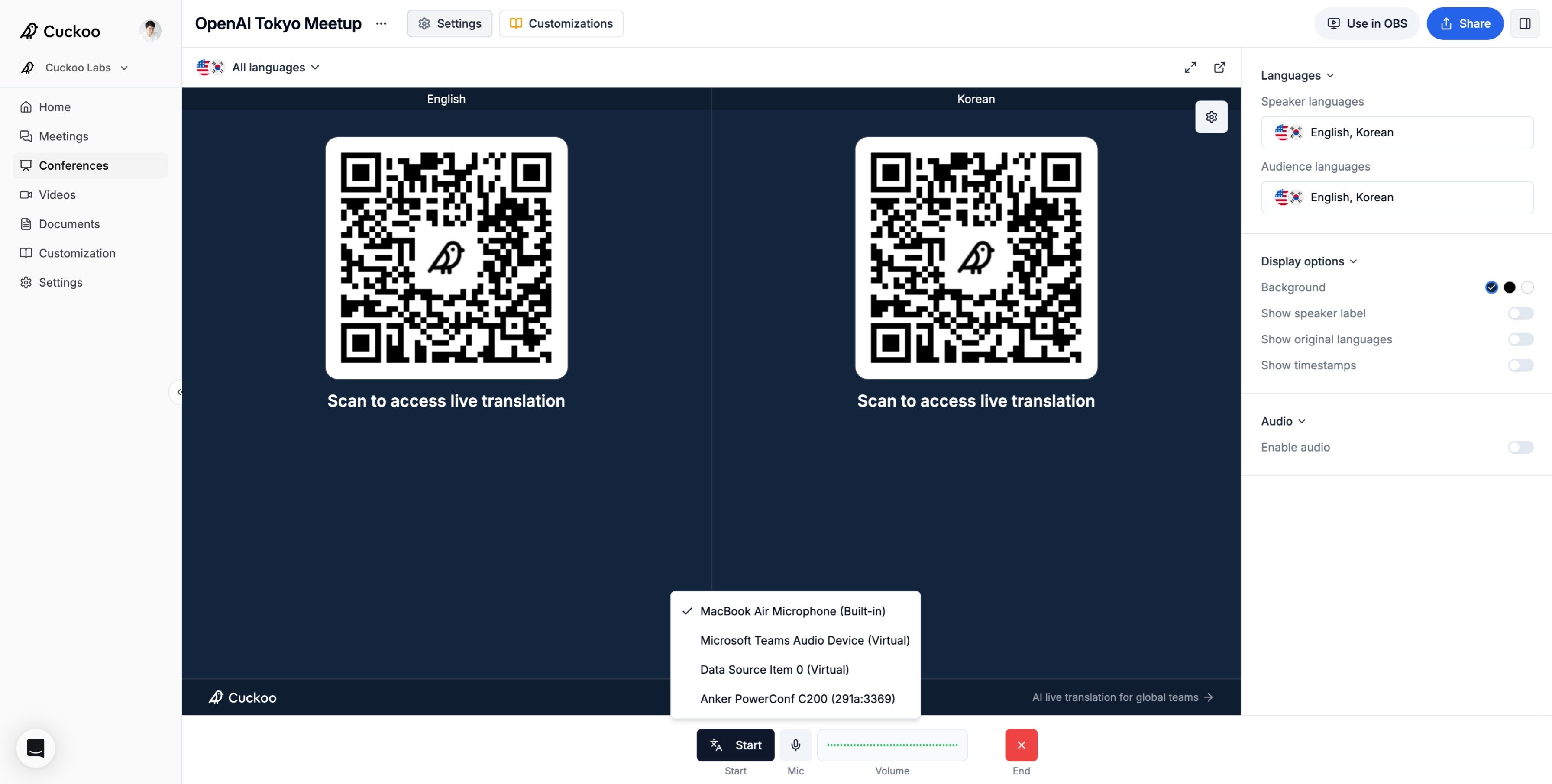
4
Clear the test transcript
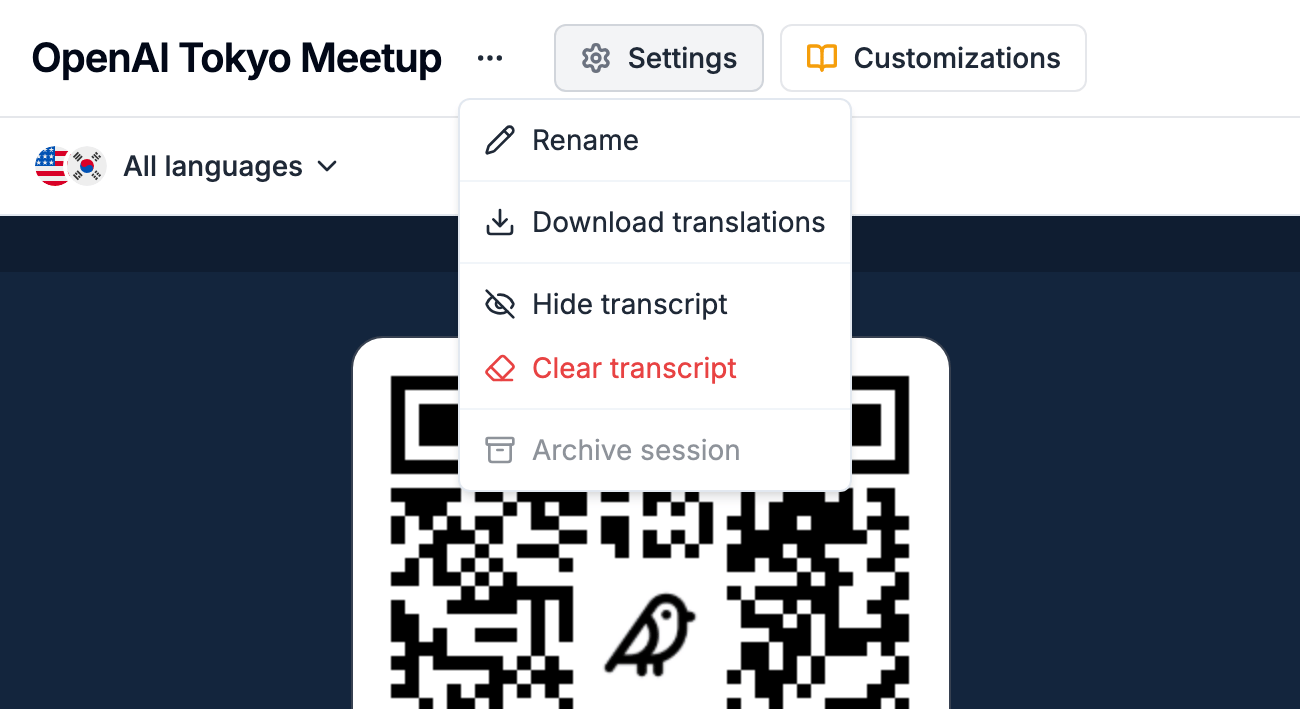
After a microphone test or rehearsal, click ··· to the right of the event title and select Clear transcript.