Signing in
Create your Cuckoo account at www.cuckoo.so using your work email. Once you’re signed in, you are ready to create your first meeting with Cuckoo.Invite Cuckoo
1
Get your meeting link
For online meetings, Cuckoo uses your invite link to join your meeting. Copy the link to the meeting you’ve created or scheduled.For each meeting platform, the invite link should look like the following:
- Zoom –
https://us06web.zoom.us/j/{meeting_ID}?pwd={meeting_password}.1 - Google Meeting –
meet.google.com/{meeting_ID} - MS Teams –
https://teams.microsoft.com/meet/{meeting_ID}?p={meeting_password}
2
Create a new Cuckoo meeting
On Cuckoo, click New meeting and select the meeting platform.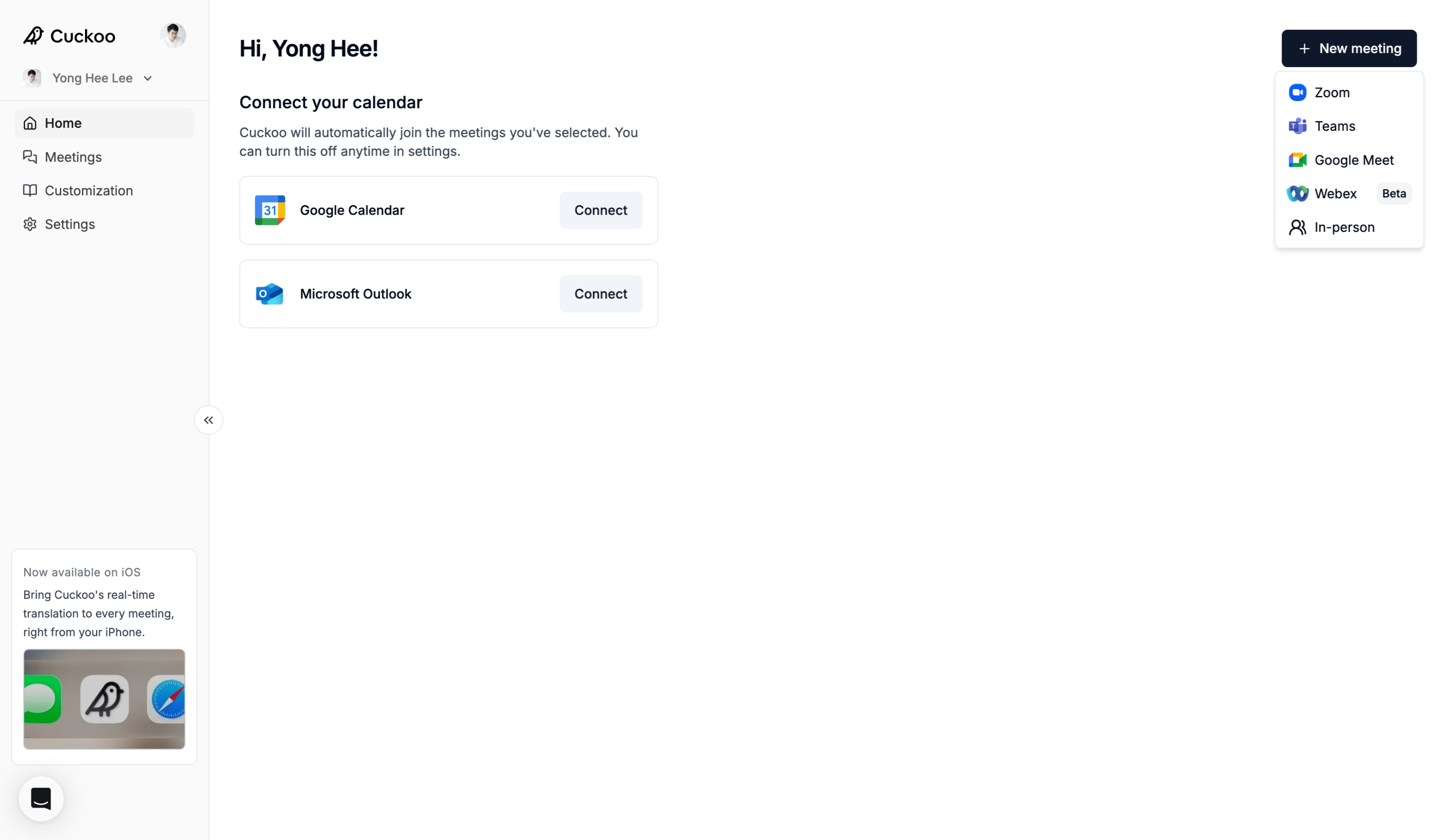
3
Enter meeting title and link, and select languages
Fill in the new meeting form.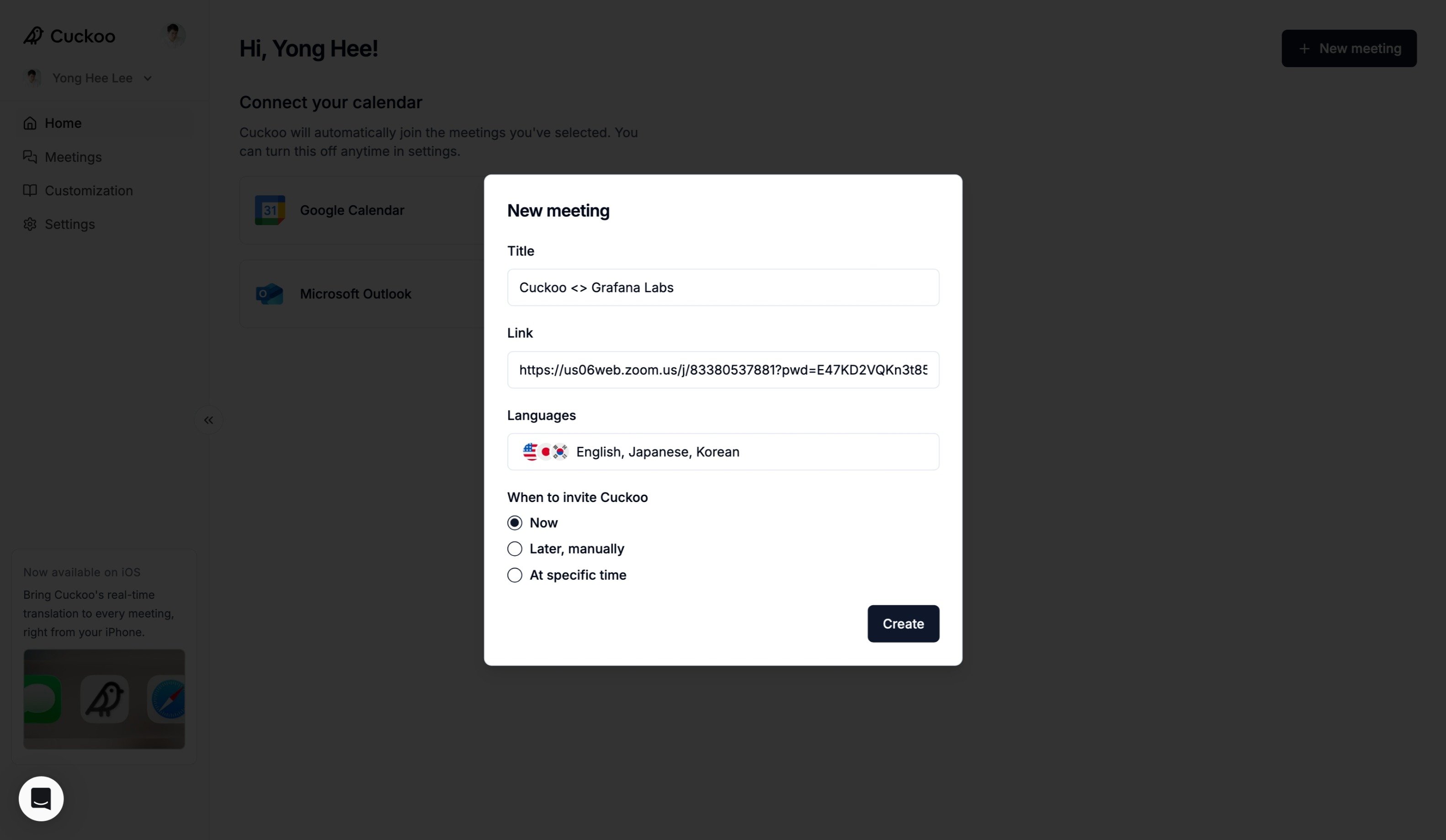
- Title – Meeting name displayed in Cuckoo and shared with participants.
- Link – Paste your Zoom, Google Meet, or Microsoft Teams meeting URL.
- Languages – Select all the languages spoken in the meeting. Cuckoo automatically handles language switching.
- When to invite Cuckoo
- Use Now to invite Cuckoo to an ongoing meeting.
- Select At specific time to have Cuckoo join automatically a few minutes before the meeting starts.
4
Approve Cuckoo to join meeting
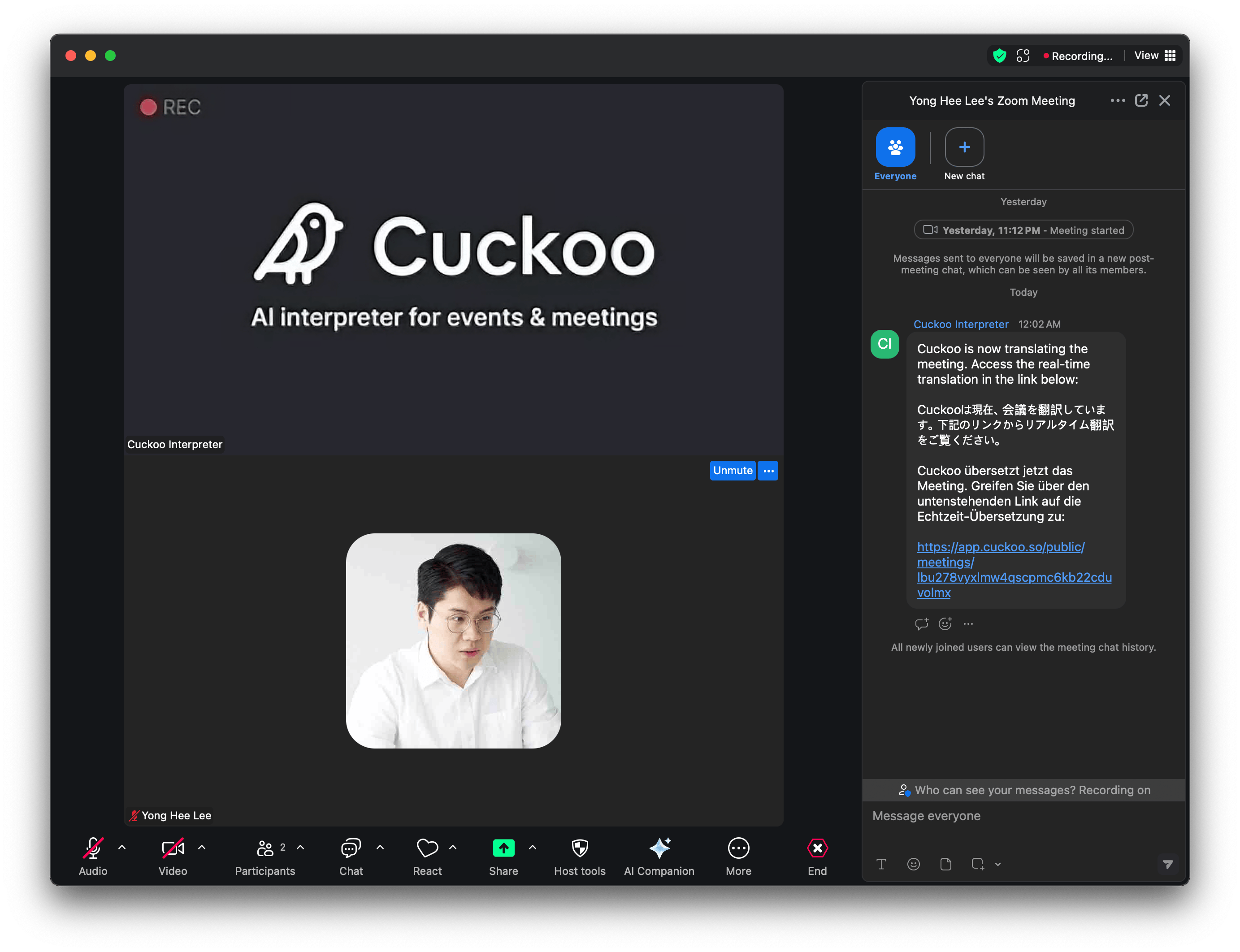
Back on Zoom, Google Meet, or MS Teams, approve Cuckoo to join the meeting.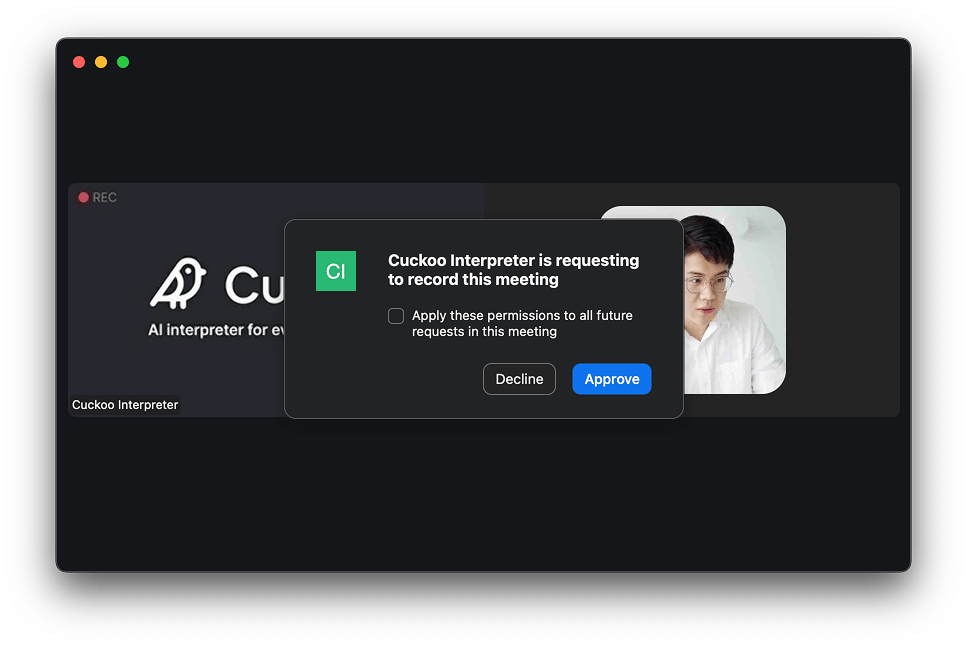
5
Follow Cuckoo's translations
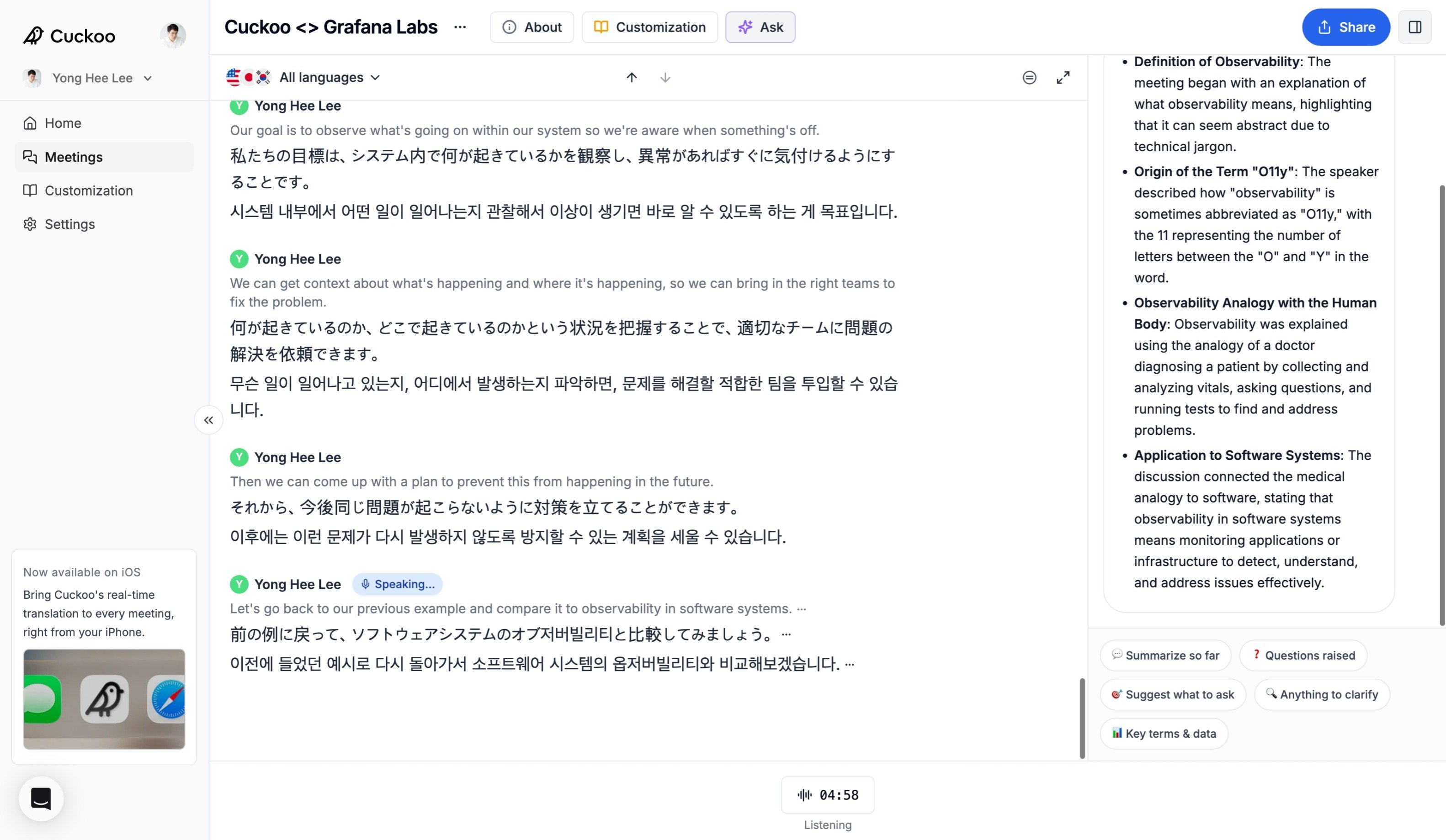
Cuckoo will begin translating into the selected target languages in real time.