> ## Documentation Index
> Fetch the complete documentation index at: https://docs.cuckoo.so/llms.txt
> Use this file to discover all available pages before exploring further.
# Team management
> Manage team settings and members
The **Team** tab allows you to manage your workspace information, invite teammates, and control member permissions.
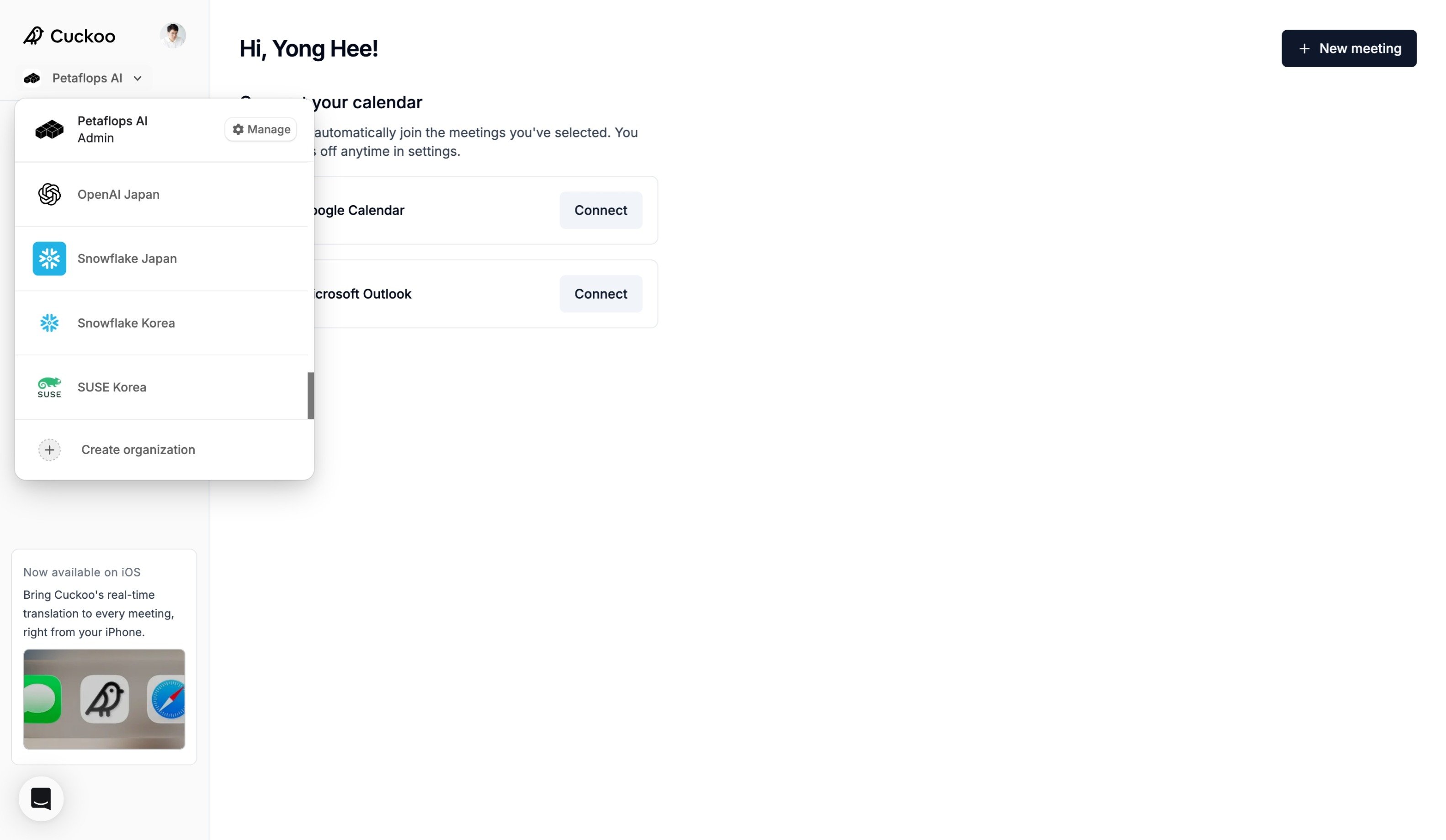
Users who belong to a team workspace can switch between their team workspace and personal workspace by clicking the workspace selector in the top-left corner of the screen.
 ## General
 * Team name – The name of your workspace.
* Organization URL – Your workspace's unique URL identifier used in shared links and workspace-specific pages.
* Language – Select the default language used across the workspace interface.
* Logo – Upload your company or team logo to personalize your workspace.
## Members
* Team name – The name of your workspace.
* Organization URL – Your workspace's unique URL identifier used in shared links and workspace-specific pages.
* Language – Select the default language used across the workspace interface.
* Logo – Upload your company or team logo to personalize your workspace.
## Members
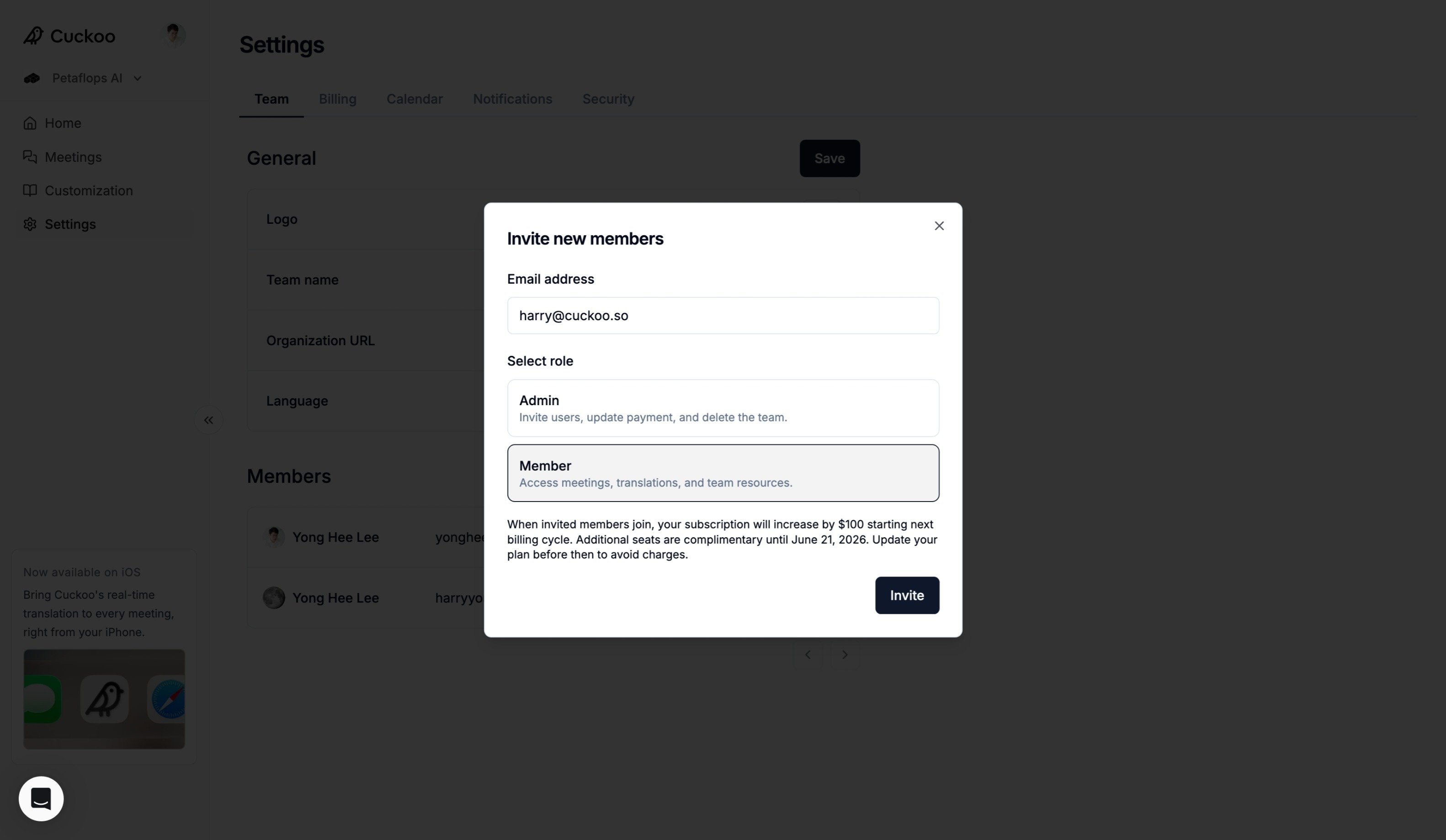 1. To add users to your workspace, click **Invite** in the **Members** section.
2. Enter the user's email address, select the role and click **Invite**.
3. You can change a member's role at any time from the **Members** list.
1. To add users to your workspace, click **Invite** in the **Members** section.
2. Enter the user's email address, select the role and click **Invite**.
3. You can change a member's role at any time from the **Members** list.