> ## Documentation Index
> Fetch the complete documentation index at: https://docs.cuckoo.so/llms.txt
> Use this file to discover all available pages before exploring further.
# In-person meetings
> Use Cuckoo in your in-person meetings
For in-person meetings, Cuckoo captures audio directly from your device microphones, so performance depends heavily on your device’s mic volume.
## Create a meeting
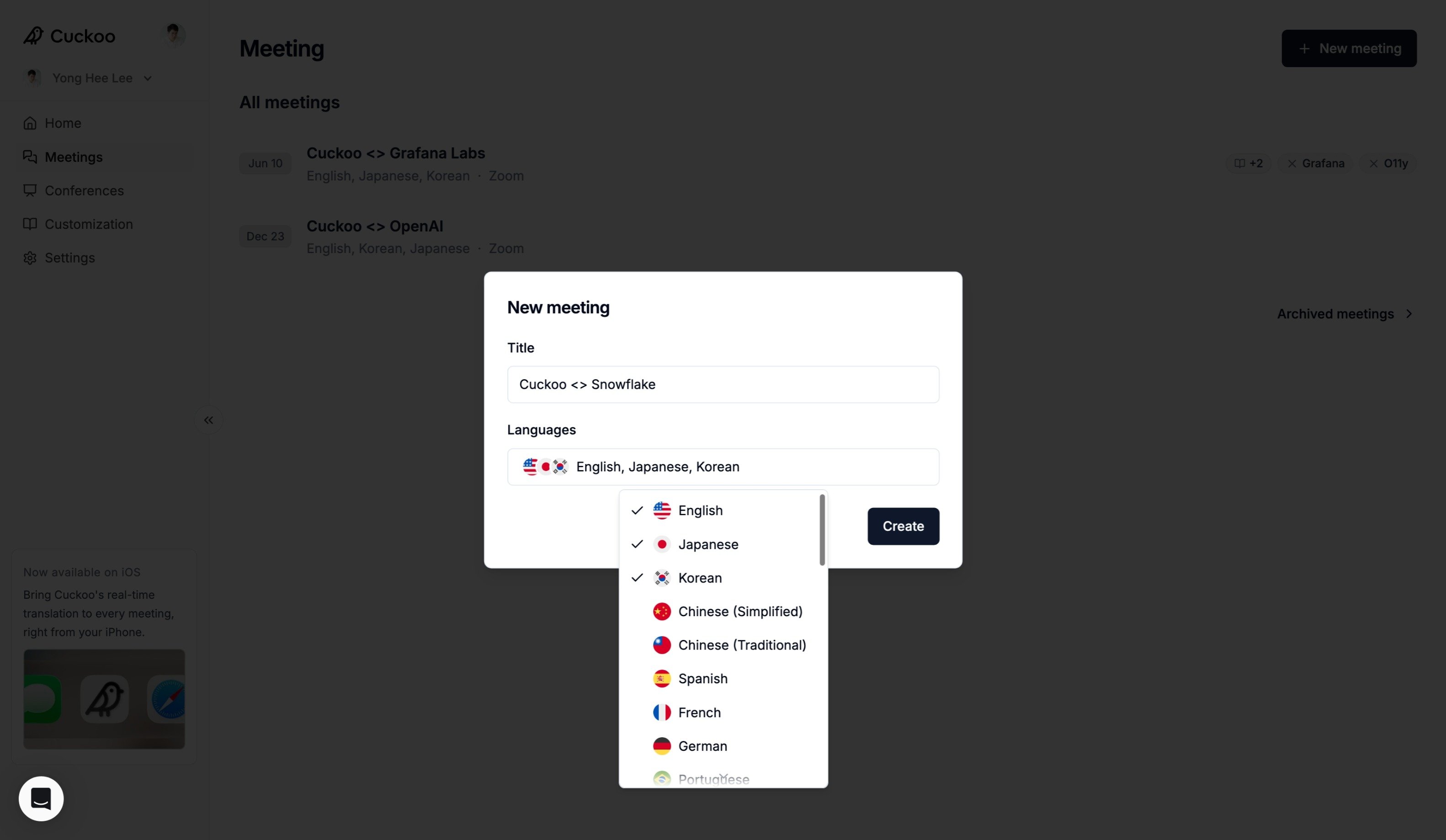 1. Click New Meeting and select In-person.
2. Enter a title and select the languages for your meeting.
3. Click Create.
## Start translation
1. Click New Meeting and select In-person.
2. Enter a title and select the languages for your meeting.
3. Click Create.
## Start translation
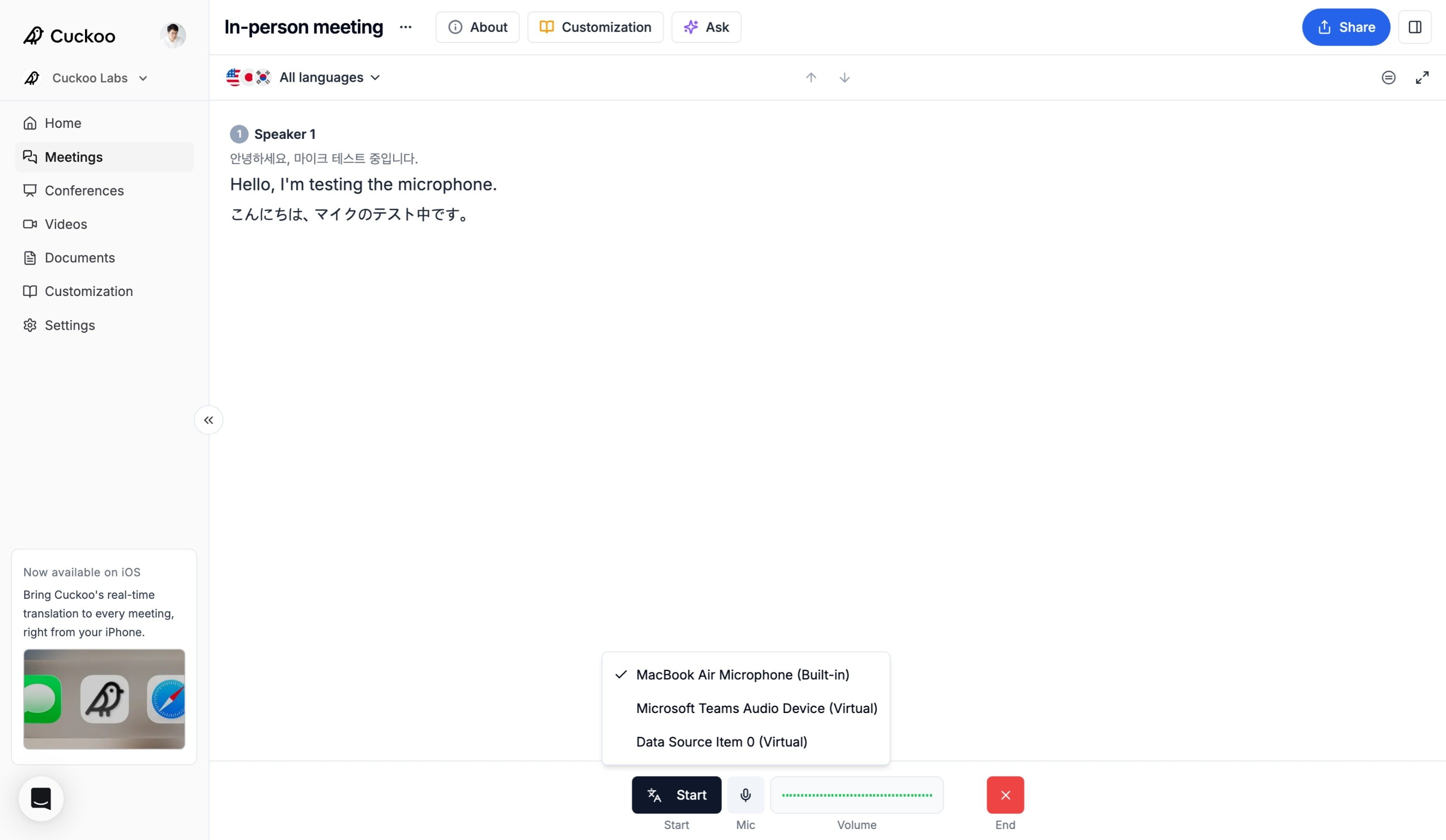 1. Under **Mic**, select your microphone input and verify that the volume indicator is active.
2. Click **Start** to begin translation or **Pause** to pause it.
3. Click **End** when the meeting is over. Ended meetings cannot be restarted.
## Share translation
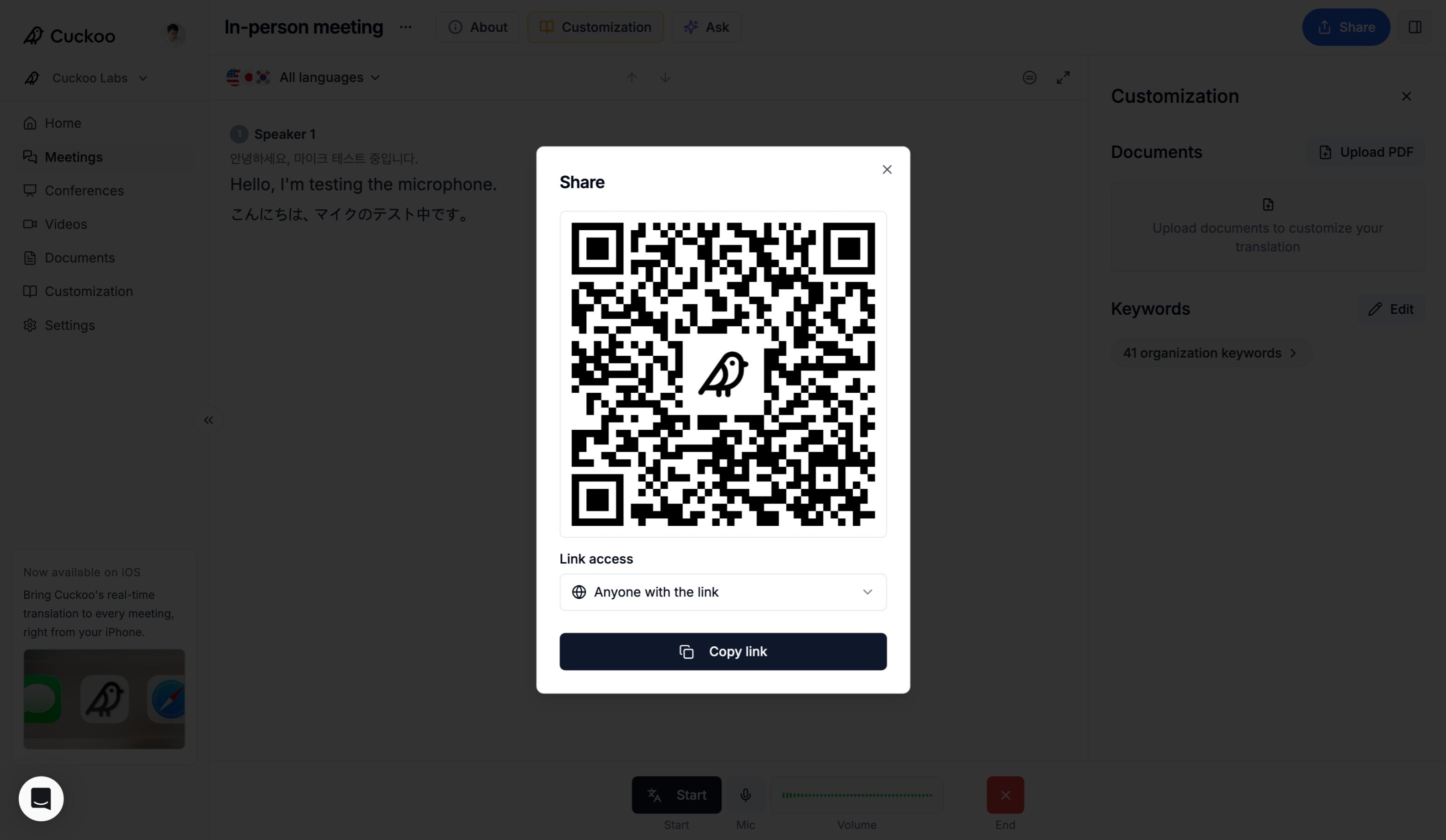
You can share the QR code or link to the translation by clicking the Share button at the top right of the page.
1. Under **Mic**, select your microphone input and verify that the volume indicator is active.
2. Click **Start** to begin translation or **Pause** to pause it.
3. Click **End** when the meeting is over. Ended meetings cannot be restarted.
## Share translation
You can share the QR code or link to the translation by clicking the Share button at the top right of the page.
 ## Troubleshooting
If your microphone does not appear in the **Mic** list, or if the volume indicator is responding but speech is not being translated, verify that Chrome has permission to access your microphone and that the correct input device is selected.
Click the settings button on the top left of Chrome, and toggle the mic settings.
## Troubleshooting
If your microphone does not appear in the **Mic** list, or if the volume indicator is responding but speech is not being translated, verify that Chrome has permission to access your microphone and that the correct input device is selected.
Click the settings button on the top left of Chrome, and toggle the mic settings.
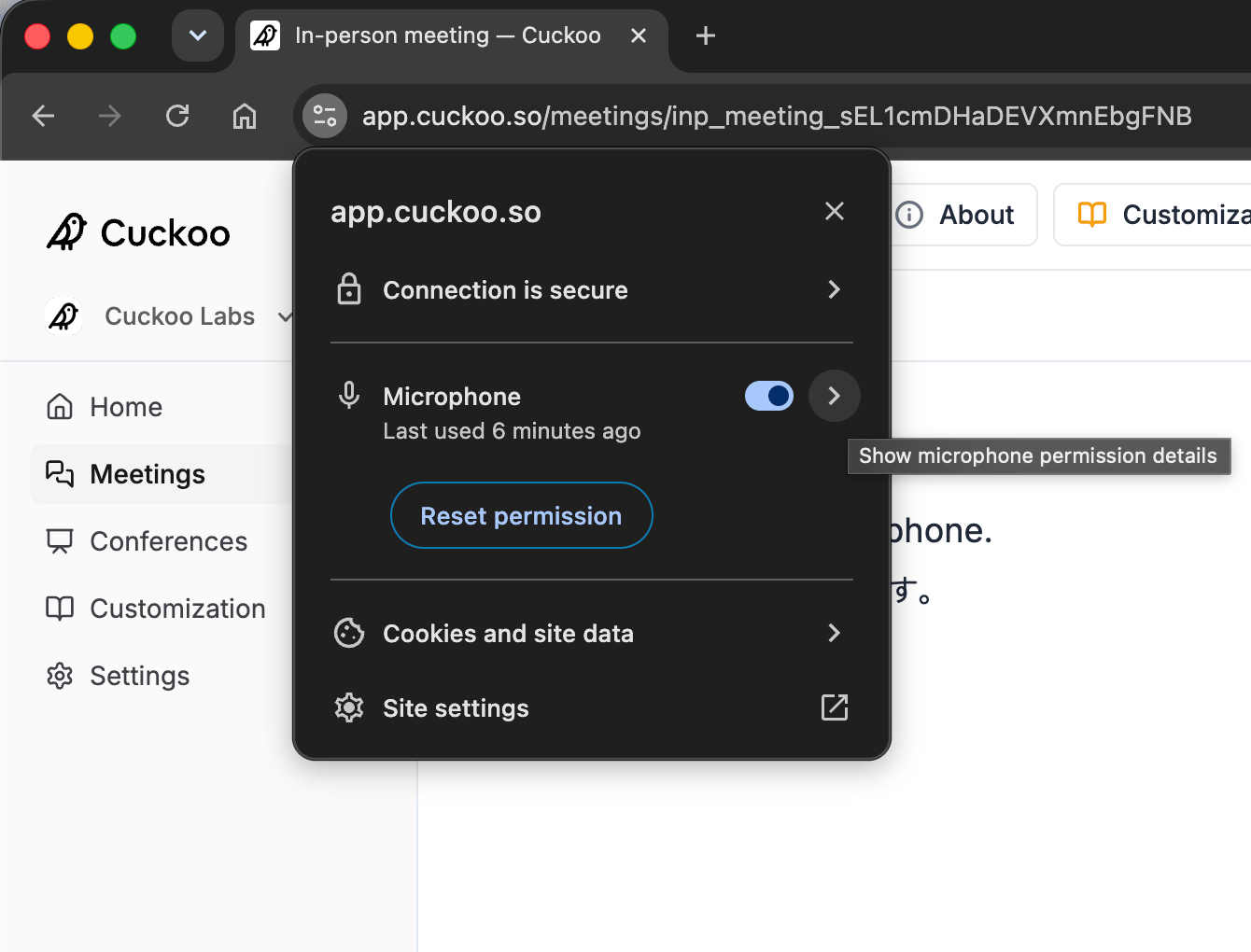
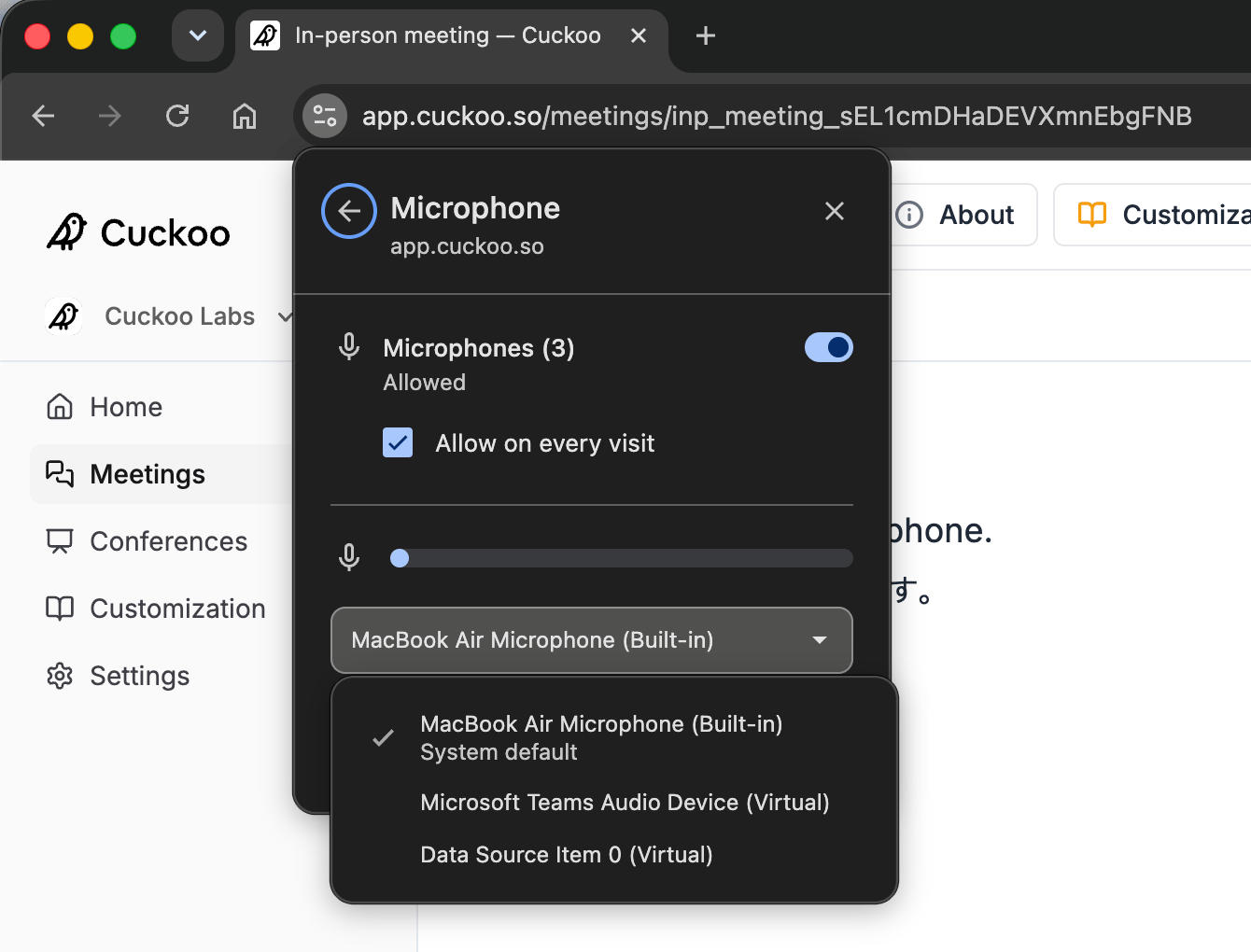 For Chrome-based browsers, you can also visit [Chrome microphone settings](chrome://settings/content/siteDetails?site=https%3A%2F%2Fapp.cuckoo.so) page and check if Microphone is **Allowed** for Cuckoo.