> ## Documentation Index
> Fetch the complete documentation index at: https://docs.cuckoo.so/llms.txt
> Use this file to discover all available pages before exploring further.
# Using the desktop app
> Real-time translator, right on your desktop
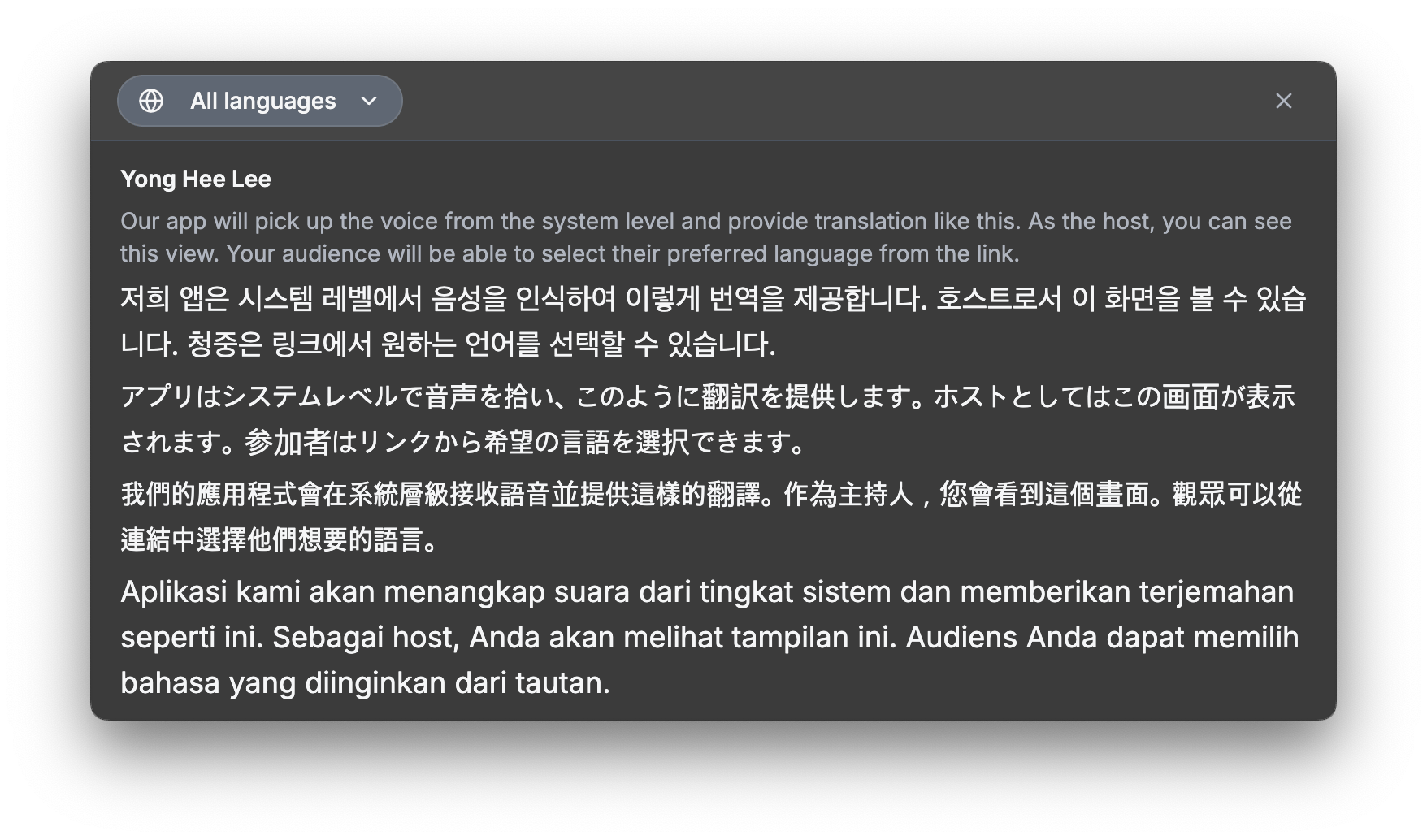
Cuckoo’s desktop app translates audio directly from your computer, eliminating the need for meeting bots.
The app stays in your dock and automatically activates whenever one of your meetings starts, whether it’s on Zoom, Slack, VooV, or other conferencing platforms.
## Install Cuckoo
1. Download the desktop app at [https://www.cuckoo.so/desktop](https://www.cuckoo.so/desktop).
2. Open Cuckoo installer from your Downloads folder.
3. Run the Cuckoo installer.
## Start translation
1. Make sure the Cuckoo desktop app is running, then start or join a meeting on Zoom, MS Teams, or Google Meet.
2. Cuckoo will automatically detect the meeting and show a **Start translation** button or trigger a notification to start translation.
3. View the transcript or share it with your team by clicking **Share** and copy link.
During the meeting, you can click **Pop out to overlay** at the top right of the translation to open an overlay that stays on top of other windows. You can freely move and resize the window.

 ## Troubleshooting
During installation, the desktop app will ask you to enable access to your device microphone and other accessibility features.
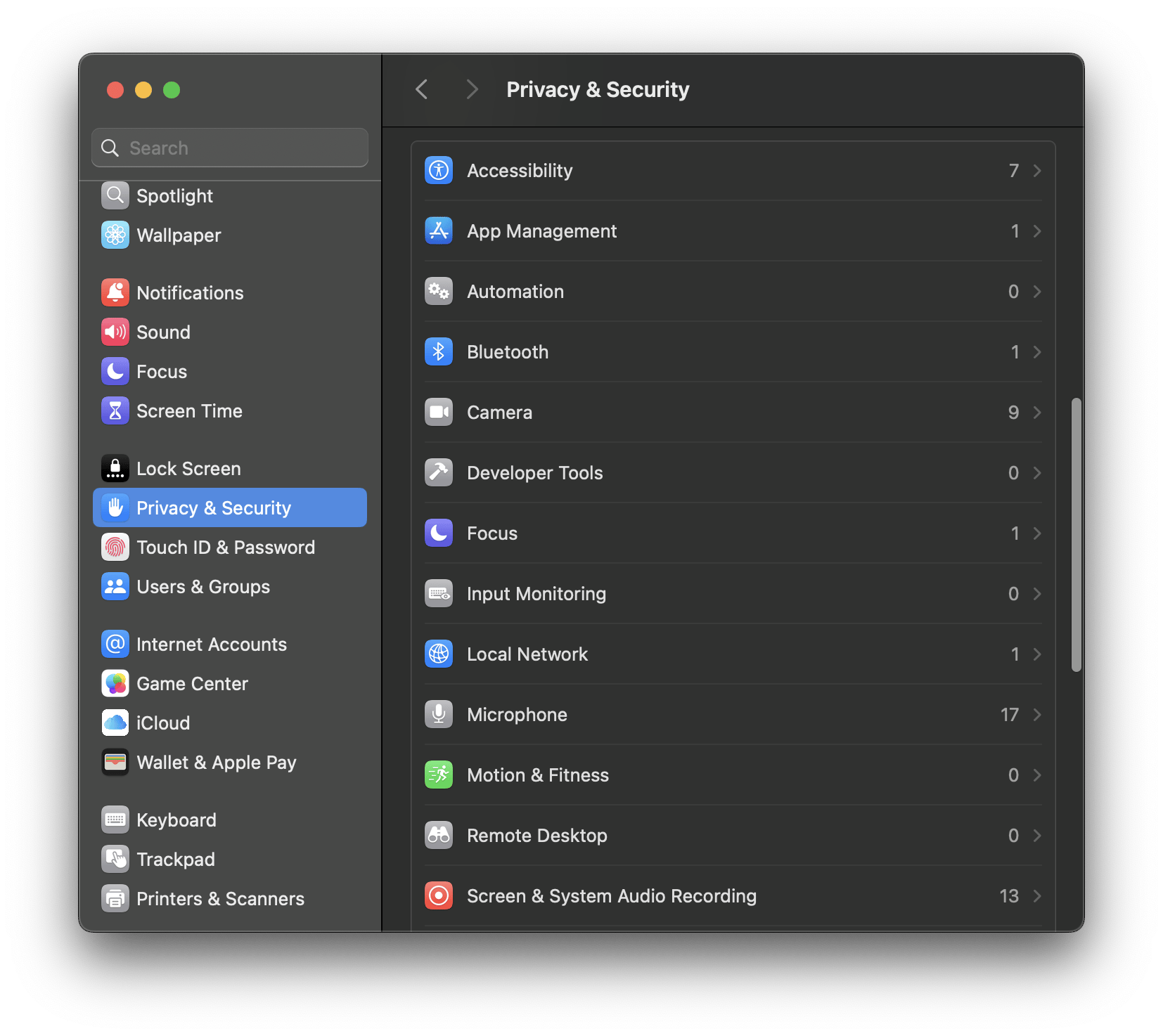
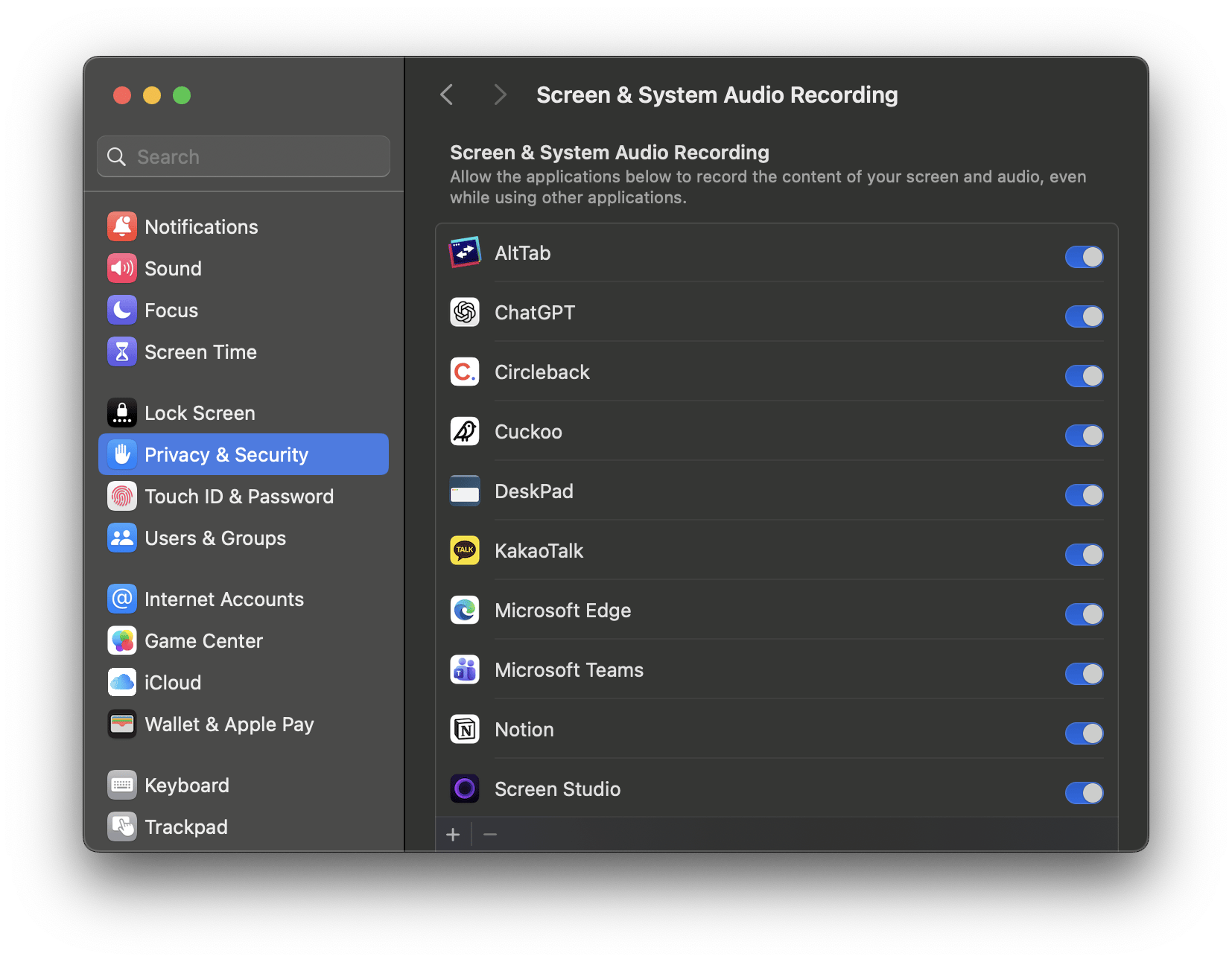
If the app does not work, check whether Cuckoo is enabled in these three settings under Mac Privacy & Security. Under each section, you should see Cuckoo listed and toggled on.
* Accessibility
* Microphone
* Screen & System Audio Recording
## Troubleshooting
During installation, the desktop app will ask you to enable access to your device microphone and other accessibility features.
If the app does not work, check whether Cuckoo is enabled in these three settings under Mac Privacy & Security. Under each section, you should see Cuckoo listed and toggled on.
* Accessibility
* Microphone
* Screen & System Audio Recording