> ## Documentation Index
> Fetch the complete documentation index at: https://docs.cuckoo.so/llms.txt
> Use this file to discover all available pages before exploring further.
# Connecting your calendar
> Have Cuckoo join your meetings automatically
Cuckoo’s Google Calendar and Outlook Calendar integrations allow you to get real-time translations for your scheduled meetings with pre-selected languages, removing the need to set up Cuckoo manually.
## Connect Google Calendar
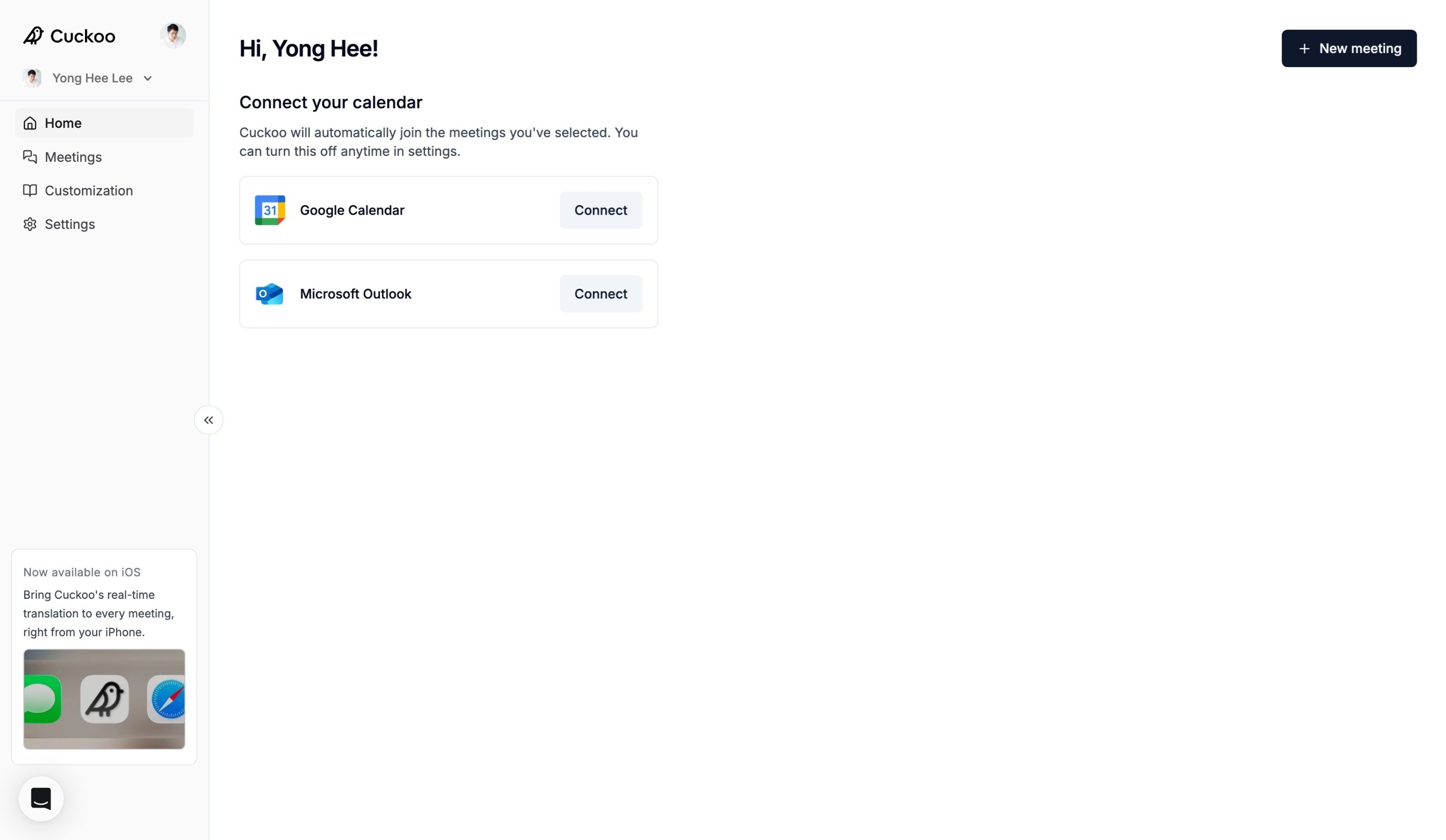
On the Home page, click **Connect** under **Google Calendar**.
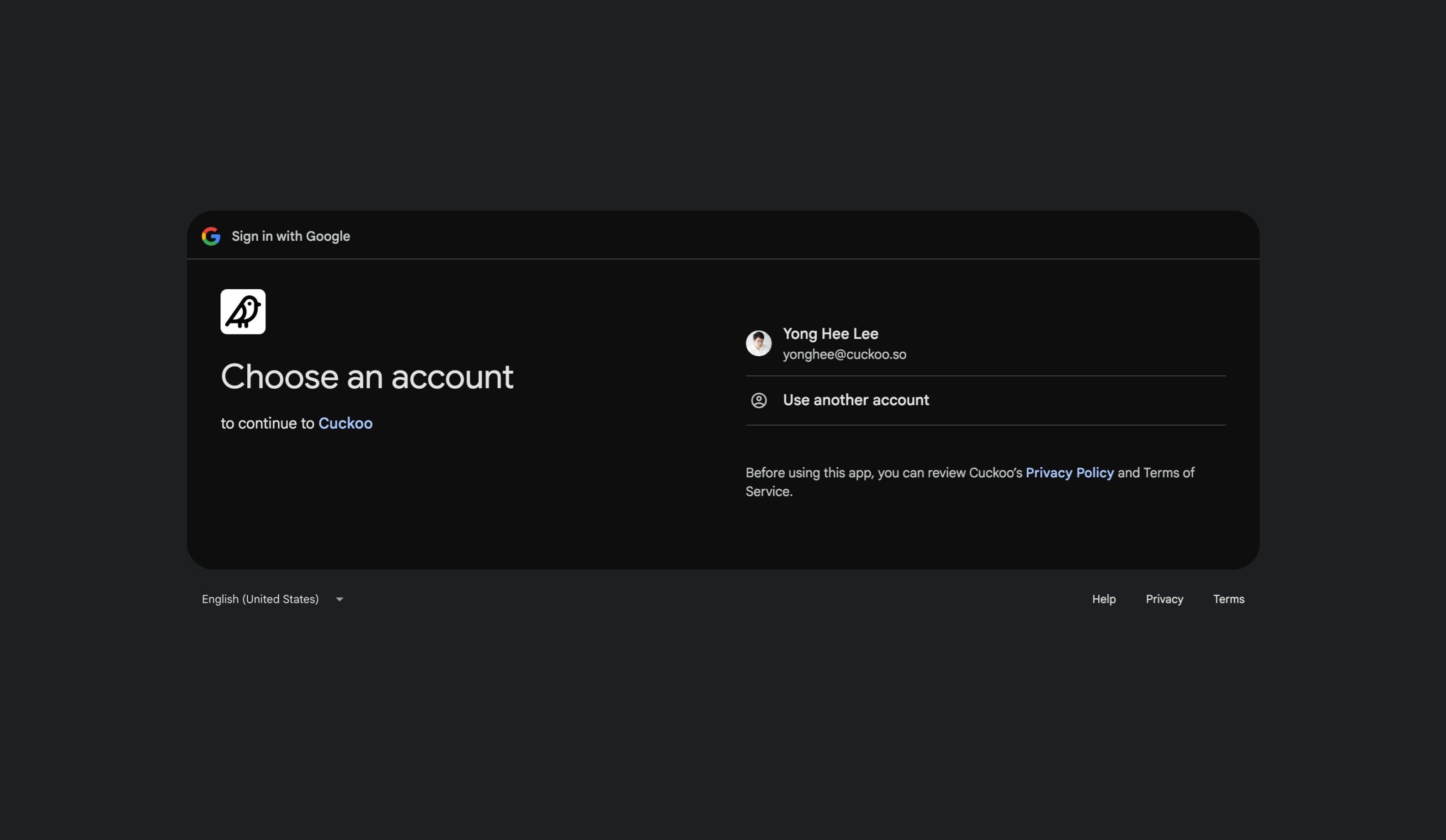
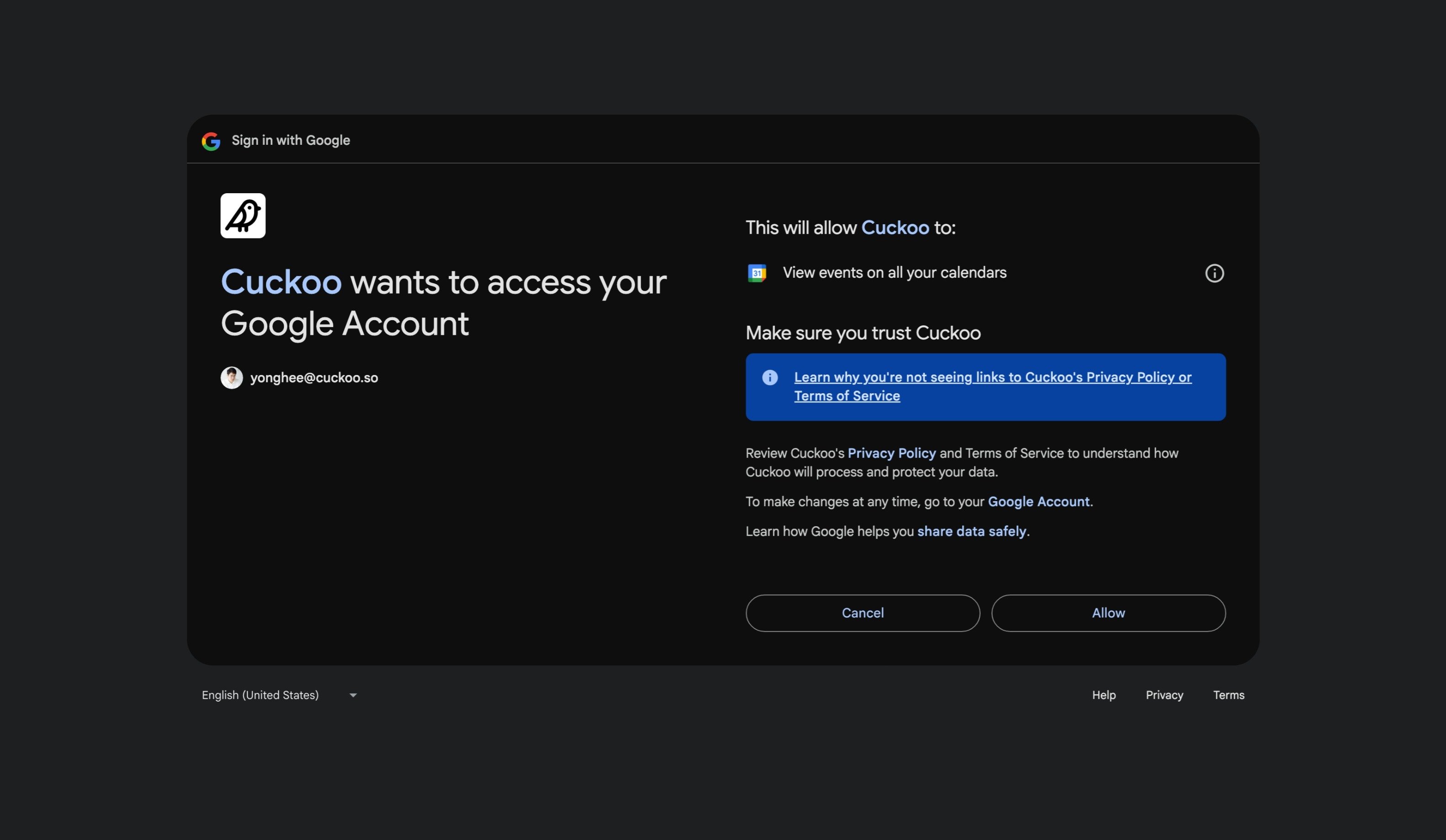
 You will be asked to sign in to your Google account in a new tab. Select the Google account you use for Cuckoo and click **Continue**.
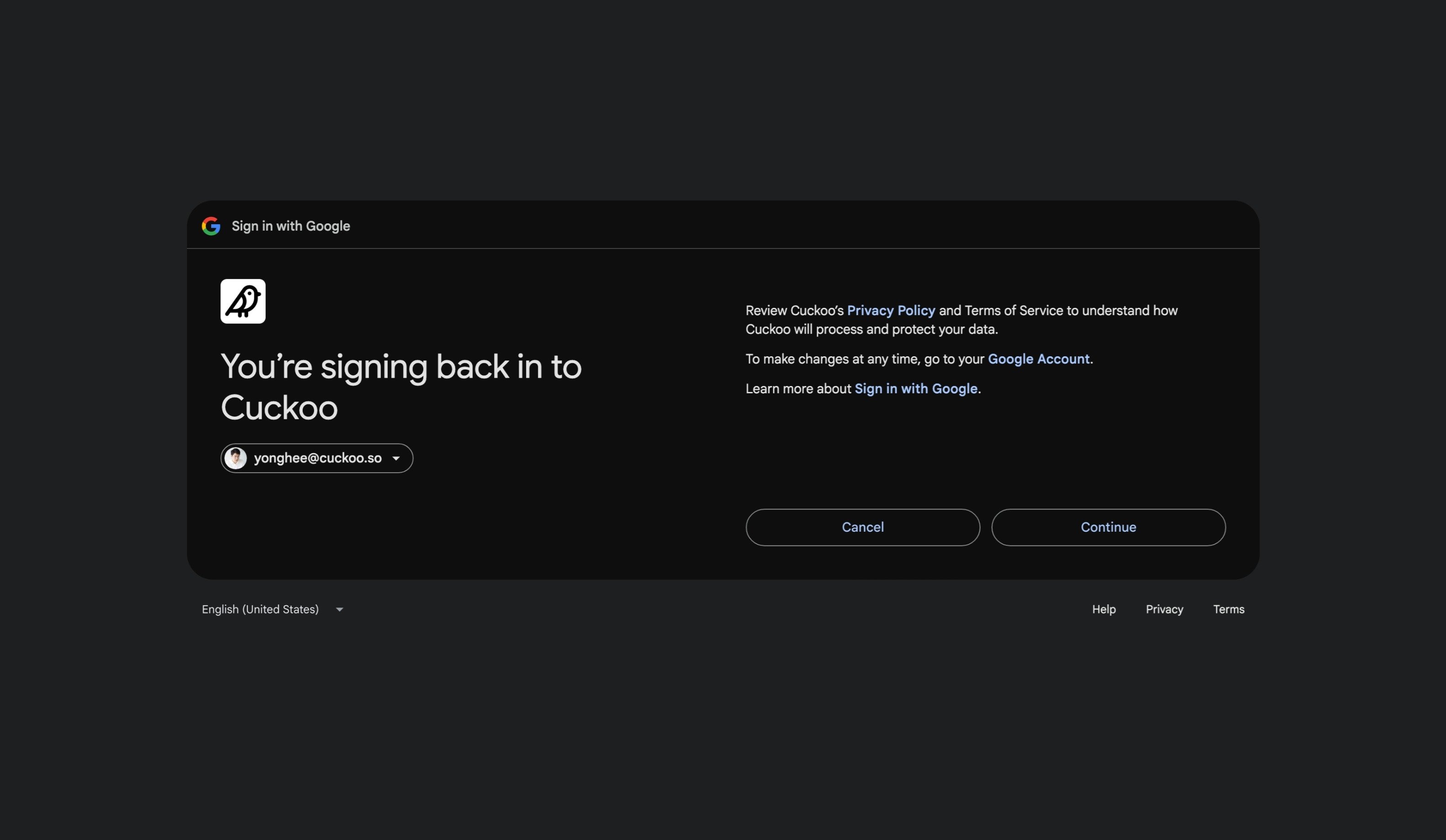 Click **Allow** and allow Cuckoo to access your calendar events.
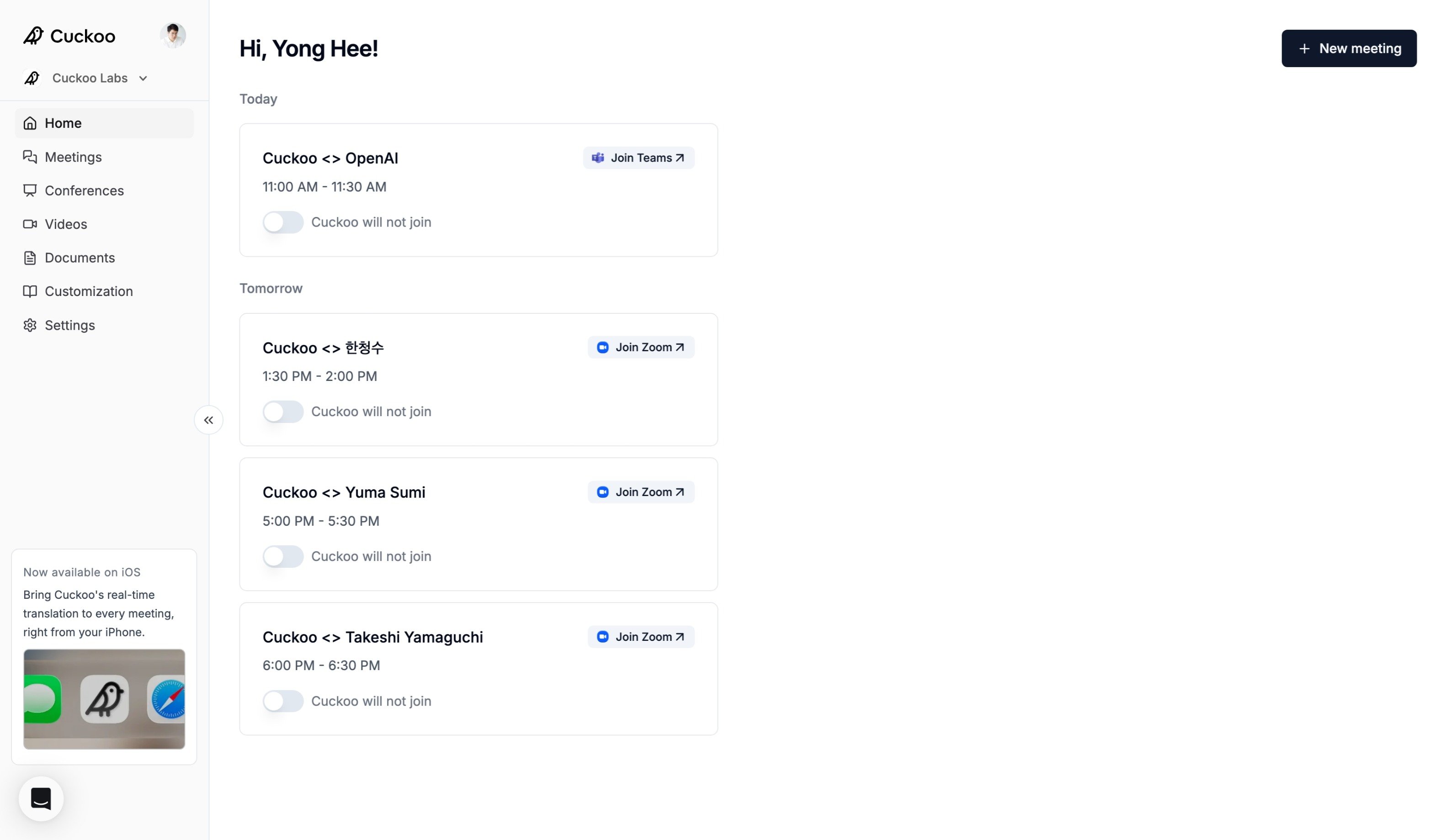
 When integrated, you will be able to see upcoming events on the Home page.
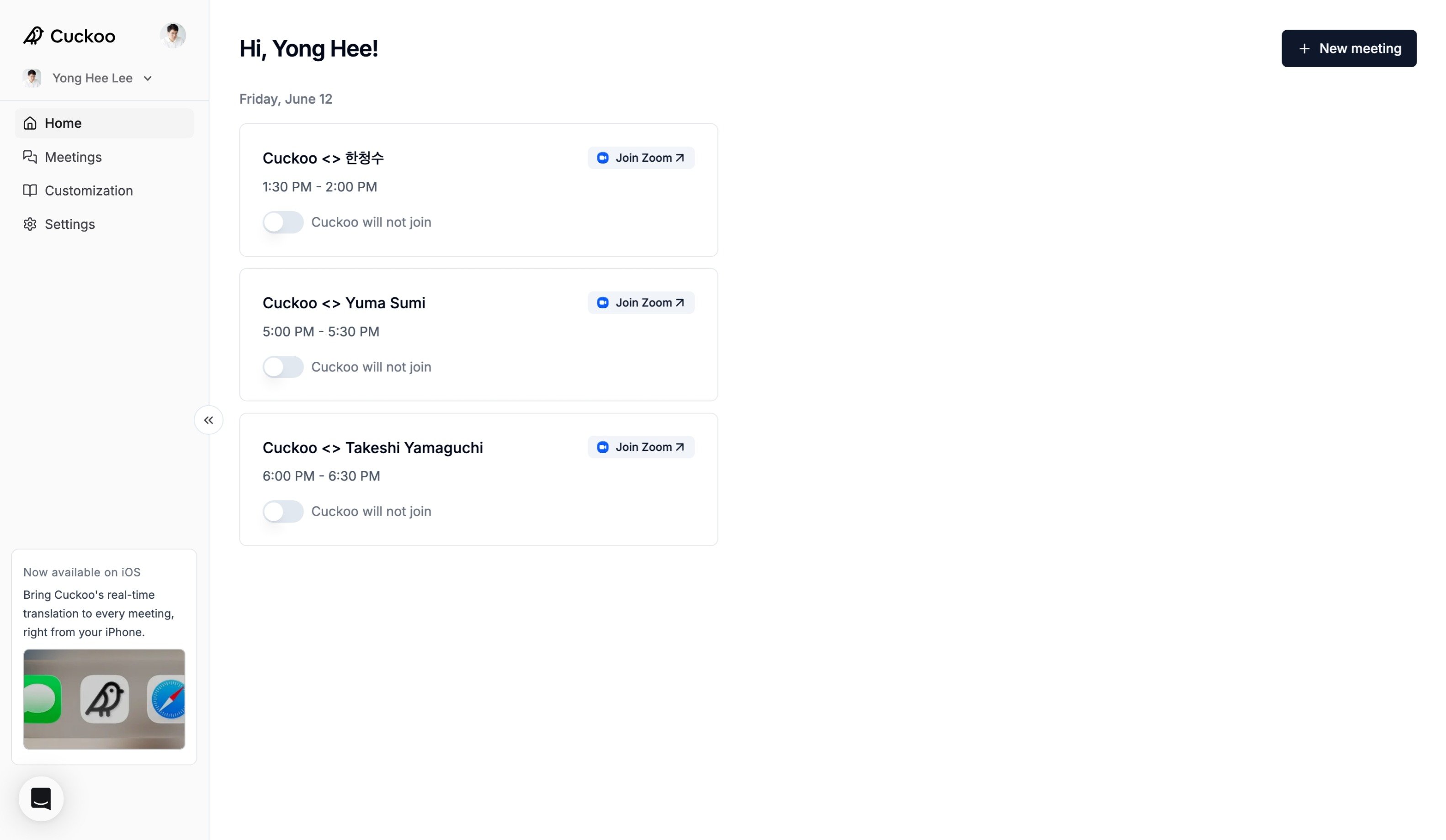 Turn on Cuckoo for meetings that require translation, select the languages, and click **Confirm**.
Cuckoo will automatically join the selected meetings. You can update the languages or disable Cuckoo at any time before the meeting starts.
Turn on Cuckoo for meetings that require translation, select the languages, and click **Confirm**.
Cuckoo will automatically join the selected meetings. You can update the languages or disable Cuckoo at any time before the meeting starts.
 ## Connect Outlook Calendar
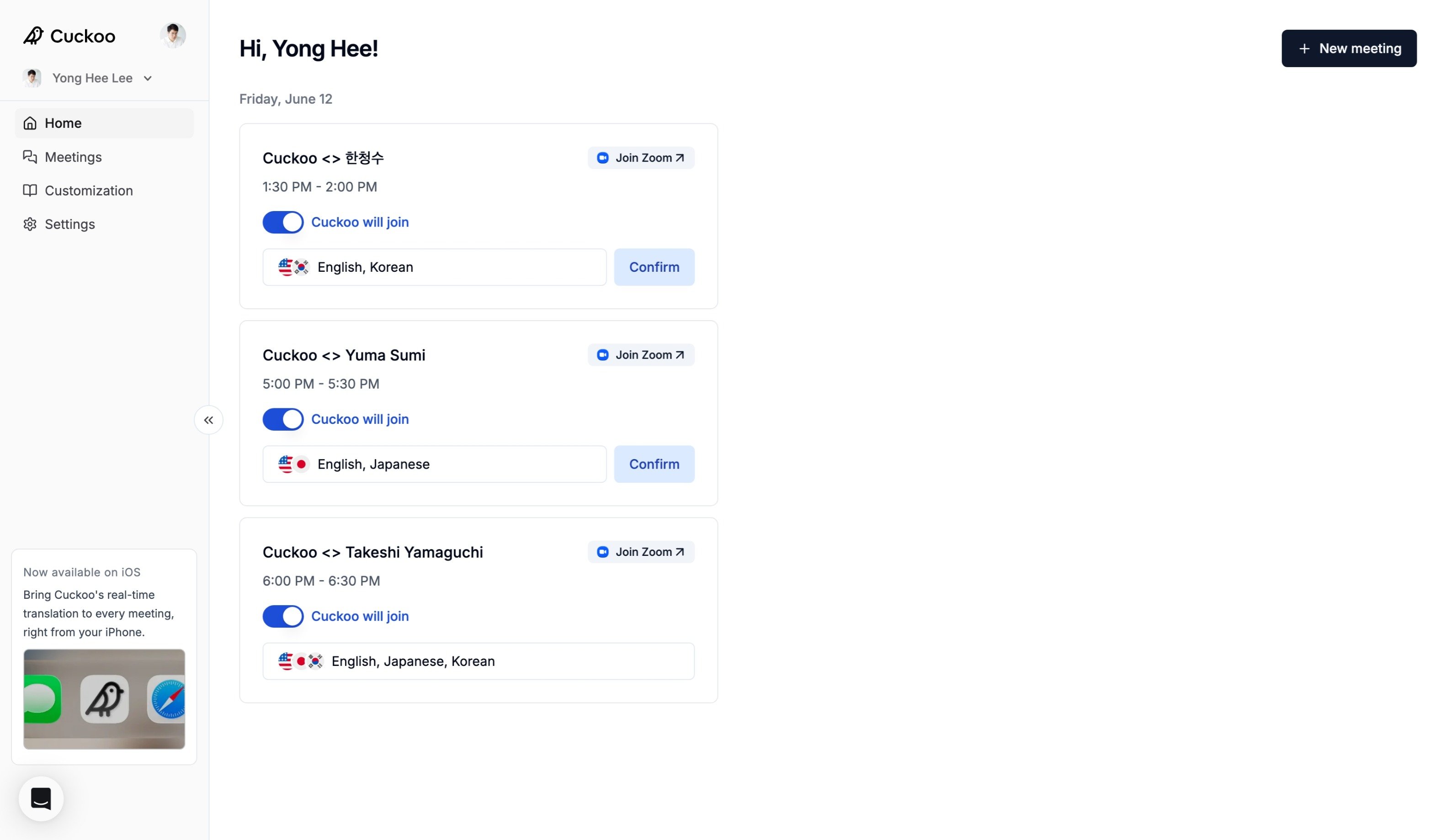
Under **Settings -> Calendar**, you can connect an additional calendar.
Click **Connect** under **Microsoft Outlook**.
## Connect Outlook Calendar
Under **Settings -> Calendar**, you can connect an additional calendar.
Click **Connect** under **Microsoft Outlook**.
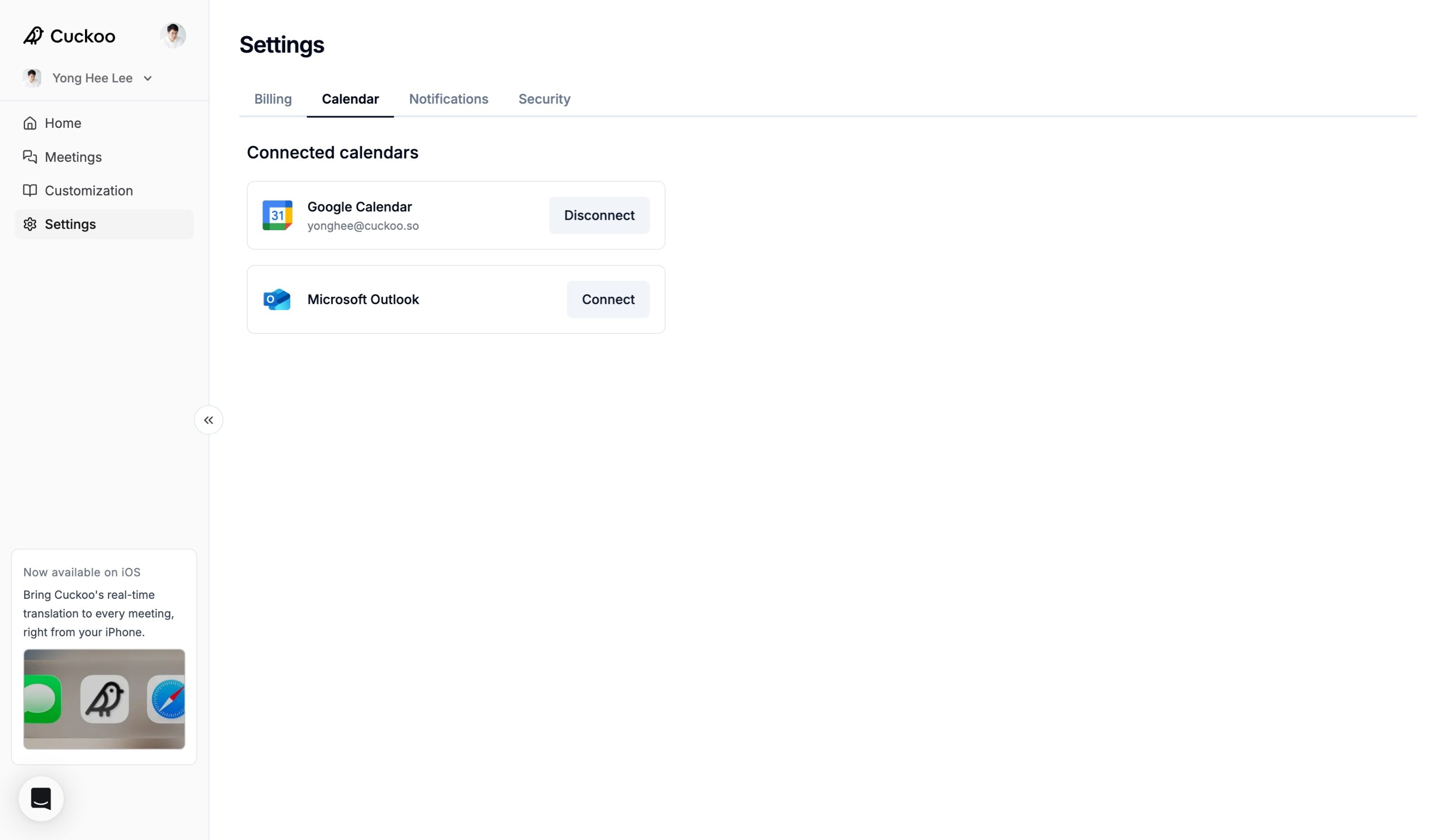 You will be asked to sign in to your Microsoft account.
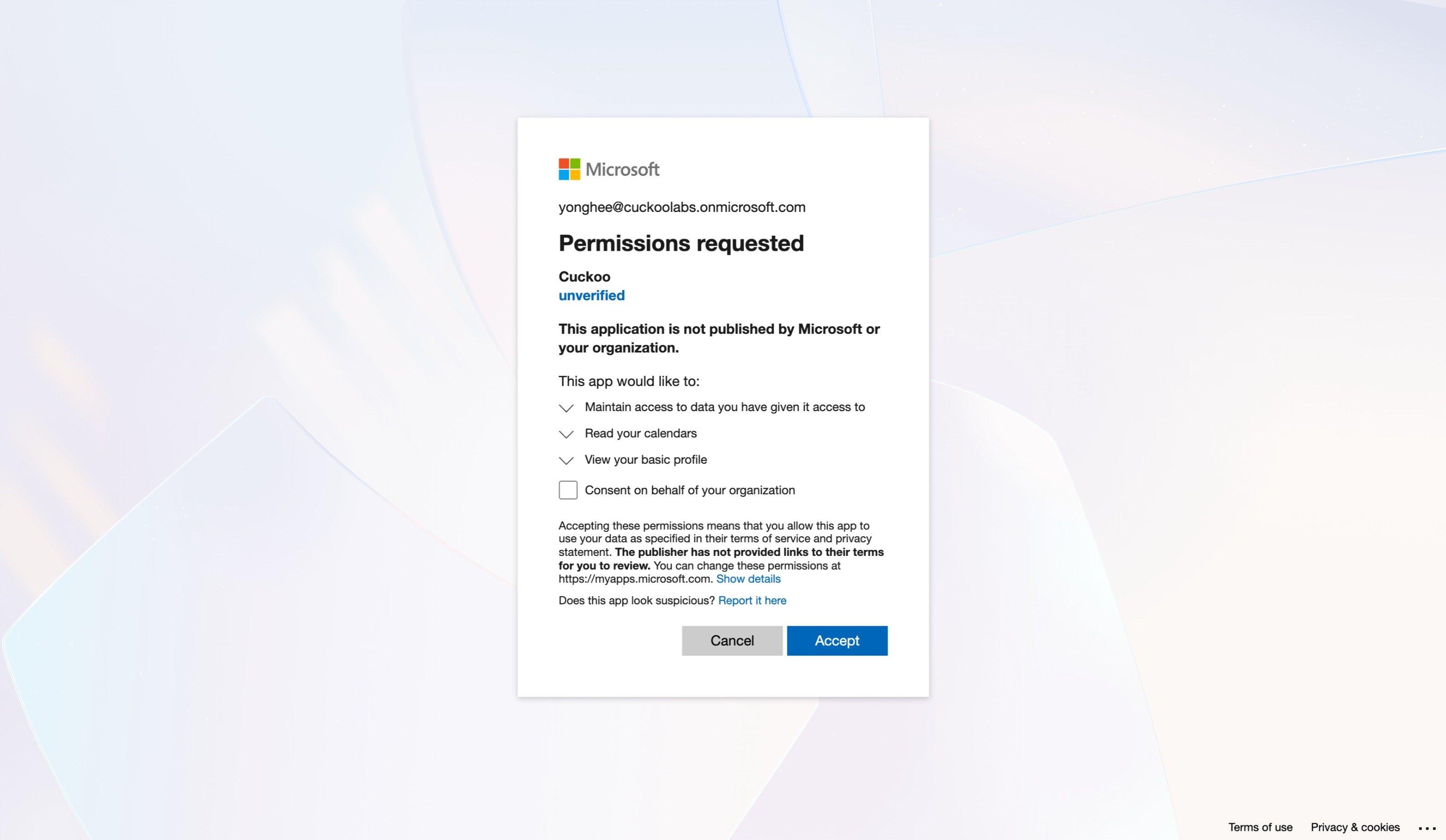 Click **Accept** and allow Cuckoo to access your calendar events.
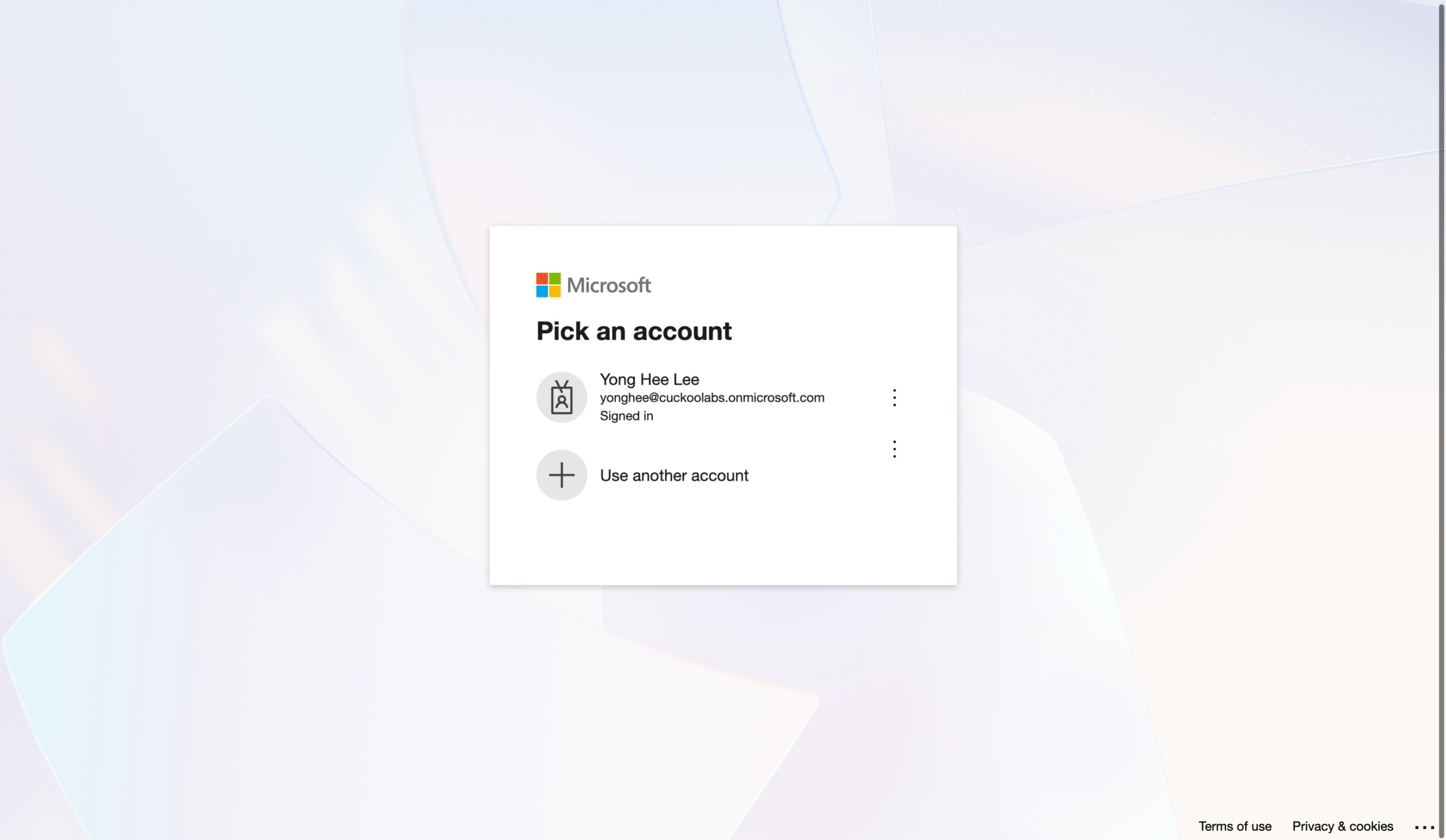 When integrated, you will be able to see upcoming events on the Home page.
Turn on Cuckoo for meetings that require translation, select the languages, and click **Confirm**.
Cuckoo will automatically join the selected meetings. You can update the languages or disable Cuckoo at any time before the meeting starts.
When integrated, you will be able to see upcoming events on the Home page.
Turn on Cuckoo for meetings that require translation, select the languages, and click **Confirm**.
Cuckoo will automatically join the selected meetings. You can update the languages or disable Cuckoo at any time before the meeting starts.